A clothing shop with eight hundred references in an Excel sheet. A hardware store struggling to keep track of its product categories. A distributor whose POS and invoicing software each have their own list of categories, with none of them matching. Setting up a proper catalogue has always been the boring part of getting started with an ERP. Last weekend, the NAiOS ERP and the POS received four consecutive updates aimed at exactly that: shared product families, importing from your spreadsheet, size and colour variants, and a POS that understands them. With these, setting up your catalogue is a single afternoon's work.
Hour one: families and subfamilies
Items are now grouped into families and subfamilies (two levels), and they are the same for both the ERP and the POS: a single master list. In Catalogue, the tree on the left filters; the family manager lets you assign icons, colours and order, and archives the ones you no longer use; the item file lets you choose the family using a search bar; and by selecting multiple items, Move to family appears to reorder the catalogue in bulk.
If you already had a catalogue, there is nothing to redo: the old text-based "category" was automatically converted into families, and the categories you had in the POS were unified with those in the ERP. Where there was a conflict, the POS category took priority, and a note was made. And in Reports, Sales by family now appears.
Hour two: importing the Excel sheet
In Catalogue → Import / export, you upload a CSV or XLSX, or choose a sheet from NAiOS Office or a file from Knowledge. The ERP automatically recognises the columns (name, SKU, EAN, price, tax, family, supplier...) and, before changing anything, shows you row by row what is going to happen: which items are new, which will be updated because they already existed with that SKU or EAN, and which have an error that should be corrected in the sheet. Any missing families and suppliers are created automatically.
Once you confirm, if anything isn't as expected, any import can be reversed. For day-to-day use, the CSV template and the catalogue export have the same columns: you export, edit offline at your own pace, re-import, and only the things you changed will be updated.
Hour three: size and colour variants
A T-shirt in four sizes and three colours is not twelve separate items: it is one item with twelve variants. In Catalogue → Attributes, you define the attributes and their values (Size: S, M, L, XL; Colour: red, blue, black). In the item file, click Convert to item with variants and then Generate variants: select the values and all combinations are created with an automatic SKU.
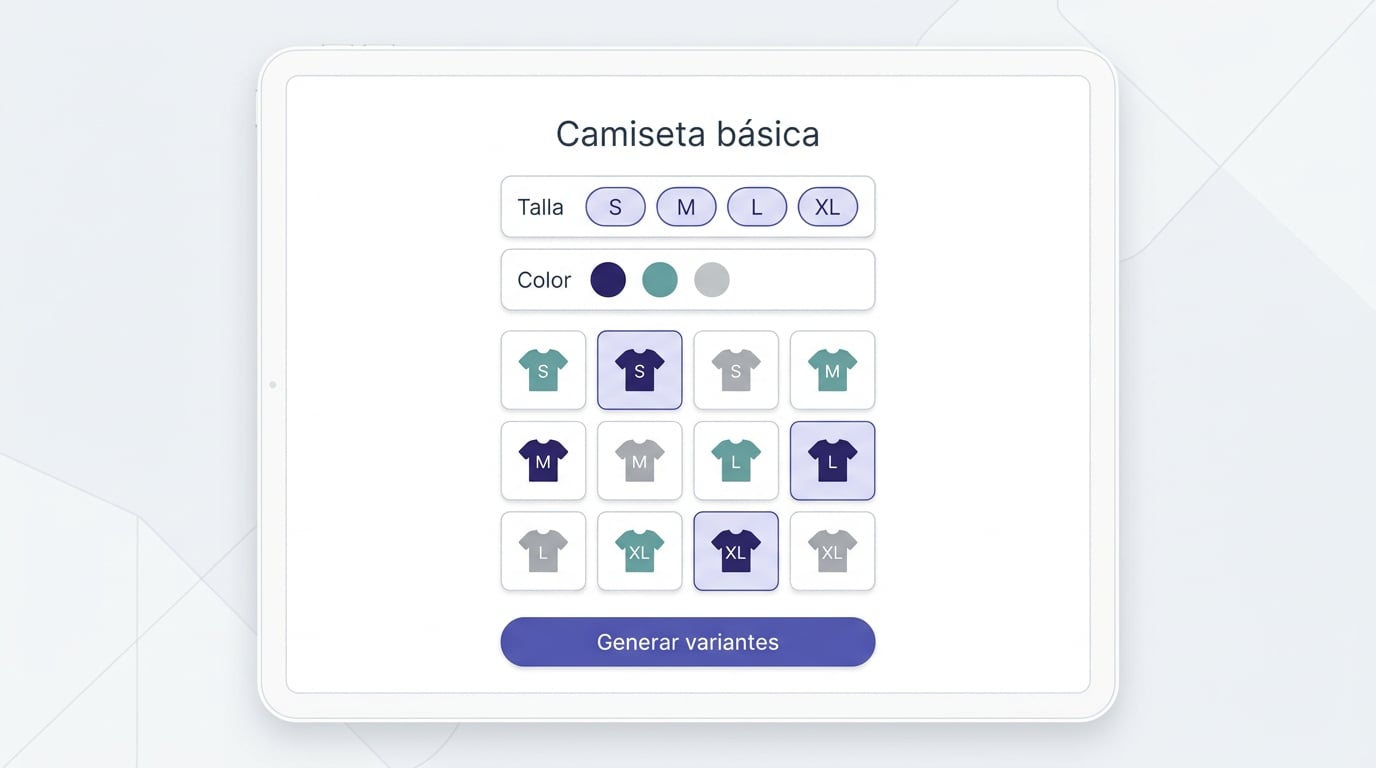
Each variant is a standard item, with its own price, stock and EAN, and inherits the family, type, taxes, supplier and description from the parent item. The parent item itself is not sold: its variants are chosen in documents and on the POS. In the catalogue, the parent item collapses to show the number of variants and total stock; its file shows the variants and annual sales, and in Reports, there is Sales by variant. The import tool also understands this: using the "Parent item" column plus "Size", "Colour", etc., it creates any missing parents, attributes and variants all at once.
Hour four: the POS already knows
POS categories are now ERP families. The first time, they migrate automatically, along with each item's emoji and classification, and creating or editing a category on the POS creates or edits it in the ERP. On screen, you get family chips and, when selecting one with subfamilies, a second row displaying them.
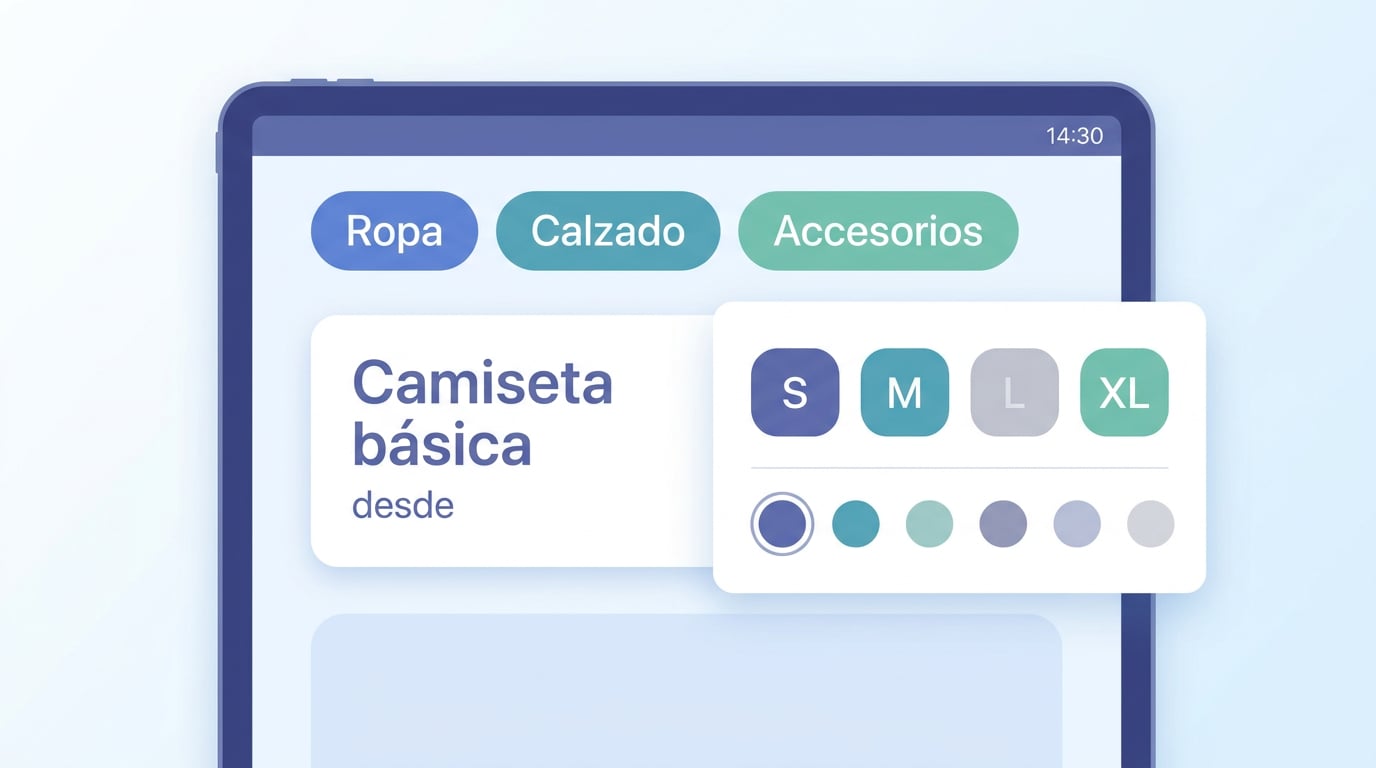
An item with variants is shown as a single card, displaying the number of variants and the "from" price. Tapping it lets you choose the combination using attribute chips, with the stock for each combination visible and out-of-stock options greyed out. Searching by a variant's SKU or EAN, or scanning its barcode, adds it directly to the receipt, bypassing the selector. The parent's emoji, favourite status and photo apply to all its variants.
An afternoon's walkthrough
- Families: create the tree in the manager, with icons and colours. Five minutes if there are only a few; the rest will be created automatically during import.
- Importing: download the CSV template, paste your sheet into it or upload your Excel file as it is, check the preview and confirm. Items with sizes and colours go in with the "Parent item" and attribute columns.
- Review: browse the catalogue by family, collapse the parent items, and correct the price or stock of any individual variants.
- POS: open the till and check the family chips and the cards with "from" prices. Scan a barcode and watch it appear on the receipt.
What isn't changing
- Stock, prices and taxes still live within each item; variants are items.
- Issuing, charging and Verifactu remain untouched: the catalogue is simply the source of the line items.
- If you don't use variants or families, the catalogue remains the same list as always.
All of this is already available in the ERP and the POS. If your catalogue is large, start with the CSV template: it is the fastest way to get everything set up, with families and variants, before the afternoon is out.