
There is a morning that repeats itself in thousands of service companies: the 1st of the month arrives and someone sits down to create, one by one, the exact same invoices as last month. Maintenance, support fees, rent, hosting, monthly consultancy. The date changes, the invoice number changes, but everything else is the same. As of this week, the NAiOS ERP has an answer to that morning: contracted services. You assign the service to each client once, and the invoices for the period are prepared automatically.
Setting up a service for a client
It all starts on the client's profile, with the Set up service button. You choose a product or service from your catalogue and adjust whatever is needed: description, quantity, price (this is copied from the catalogue, and changing it here won't affect the catalogue), monthly, quarterly, half-yearly or annual frequency, the billing day between the 1st and the 28th, the start date and, if applicable, the end date.
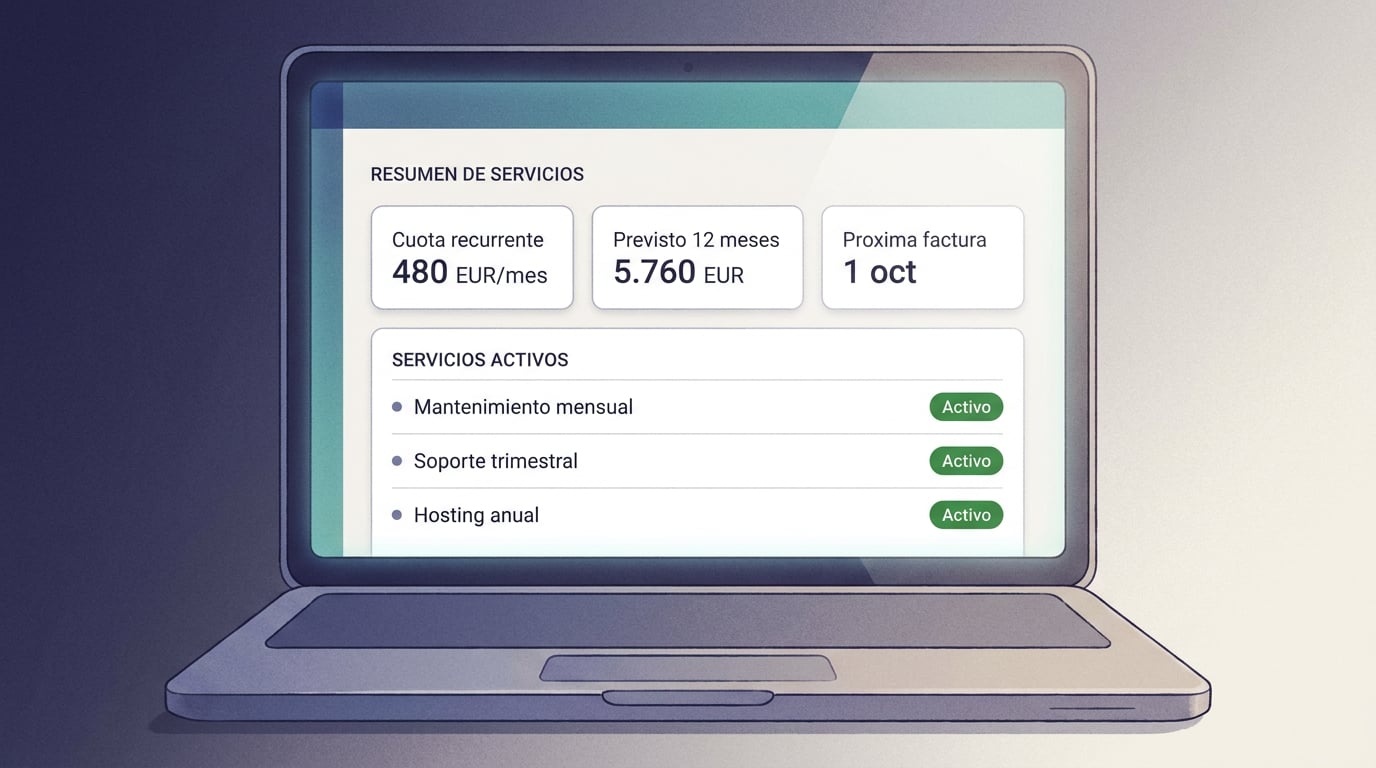
From that moment on, the profile tells a different story: their recurring fee in monthly equivalents, the twelve-month forecast, the next invoice, and the list of services with their status. Each service has its own menu: edit, pause and resume, view already invoiced periods, cancel, or delete if it was never actually invoiced.
Calendar periods, no pro-rata
We made a simple decision here on purpose. The periods follow the calendar: monthly, quarterly, half-yearly or yearly. The first period is billed in full: if you set up a monthly service on 15 September, the first invoice is for the whole of September. The same applies to cancellations: the current period is invoiced in full, and then the service ends automatically. This is what most service contracts already do, and it avoids disputes over pro-rata calculations to four decimal places.
Nothing is issued on its own
On the billing date, or a few days earlier if you set up advance notice, the ERP prepares a draft per client with all their services for the period—or one per service if you prefer that grouping— and notifies you via the bell icon: “Recurring invoices: N drafts ready”. The drafts are labelled “Recurring · September 2026”, prevent you from accidentally changing the client, and are reviewed just like any other document.
The inbox is located in Invoices → Recurring: the drafts for the period with their totals, who is missing a NIF, and the upcoming invoices for the next thirty days. From there, you can click Prepare now if you do not want to wait for the scheduled day, Issue all, Discard one or all of them, and export an Office sheet with the services and the twelve-month forecast.
Issuing all does the same as issuing an invoice manually: it assigns a number in the sequence, registers it with Verifactu and, if you have it active, submits it to the AEAT. That is why it asks for confirmation and why it cannot be undone: an issued invoice can only be cancelled or amended, as we explained in the post about the ERP with Verifactu as standard.
Automatic issuance exists, but you have to turn it on
For those who bill identical fees every month and do not even want to review them, you can switch from “drafts” to “issue” in My company → Recurring billing. The ERP displays this in red and asks for a second confirmation, because from then on, invoices are issued on the billing date without you having to do anything. With two safeguards: it requires the issuer's tax details to be complete, and it never issues a simplified invoice to a client without a NIF. That draft will wait and notify you.
Treasury finds out, and so does the chat
The contracted fees enter the NAiOS Treasury forecast as expected receipts, each on its respective date, under the “Fees you collect” card. And in the chat, you can ask “what services does this client have set up?” or “how are the recurring invoices doing?”, or request “set up the monthly maintenance for this client starting in October”: the copilotAI CopilotAI Assistant integrated into work tools prepares it and asks you for confirmation. It never generates or issues invoices on its own.
What it doesn't do, on purpose
- It doesn't pro-rata. Full periods, first and last included.
- It doesn't invoice the same period twice, even if the server restarts halfway through generation or two people click “Prepare now” at the same time.
- It doesn't issue invoices on its own unless you enable it, and even then, never to a client without a NIF.
- It doesn't regenerate a period you have discarded: if you discard it, it is logged and will not appear again.
Getting started takes ten minutes
If you already have clients and a catalogue, you just need to open three or four profiles and set up what you already charge them. The profile will instantly tell you how much they add up to per month and when the next one is due. If your business relies on recurring fees, this is the difference between a whole day of invoicing and half an hour of reviewing. And if you also have electronic invoicing on the horizon, all of this is already prepared for the Crea y Crece Law.