A branded newsletter sent to your clients, with real metrics, without hiring another tool or exporting lists back and forth. That is the bulk-sending side of NAiOS Campañas, and it is set up in five steps. This guide walks you through them, along with the decisions you will face along the way: which transport to use, what SPF and DMARC are all about, and how to know who will receive the email before you send it.
1. The list: only with consent
In Campañas → Listas you create a static list and add addresses by pasting them (one per line, or "Name, email") or importing a CSV or Excel file. In both cases, the system asks you to declare the basis of consent: express or customer. Without this declaration, no one is added; with it, a record is kept of who made it, when, and where it came from. The extra columns in the file (city, plan, whatever) become variables to personalise the email.
If you prefer the list to populate itself, make it dynamic from a CRM segment: it is evaluated at the time of sending, and only records with an express or customer basis are included, excluding those marked "do not contact" and those on the suppression list. And if you capture sign-ups with a Forms form, connect it to the list: whoever fills it in receives a confirmation email, and only upon confirming are they added as an opt-in with the proof saved.
2. The transport: your SMTP, Brevo or Resend
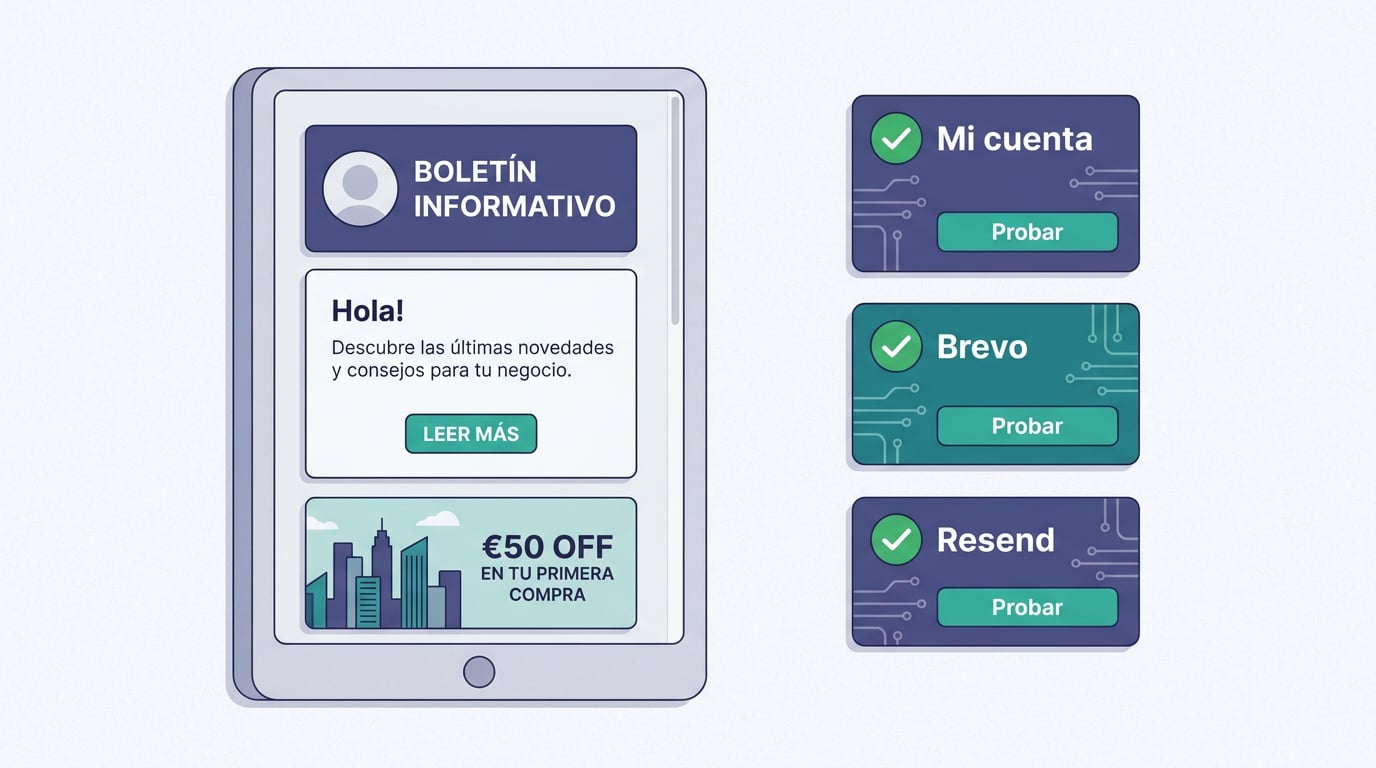
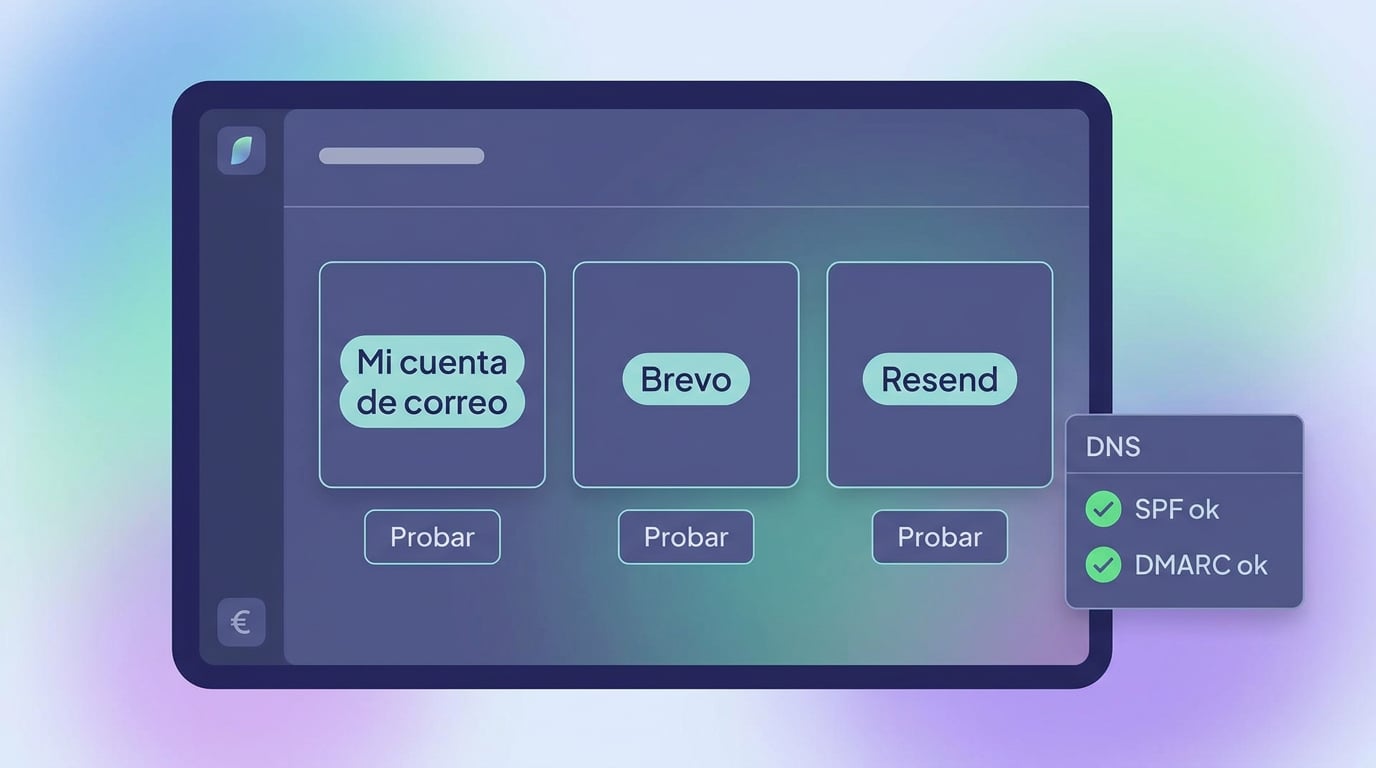
In Campañas → Transportes you choose how the mailings from that space are sent:
- My email account (NAiOS Mail): your own server. No automatic signature or copy to Sent (a campaign of two thousand emails should not open four thousand connections). Bounces arrive in your inbox as normal emails and are listed for review.
- Brevo: API key and verified sender in Brevo. We provide you with a webhook URL with a secret token so that Brevo can notify you of bounces, complaints, unsubscribes, deliveries, opens and clicks.
- Resend: API key, webhook signing secret and sender on a verified domain in Resend; the webhook arrives signed and is verified before being accepted.
Keys are stored encrypted and are never shown in full. And there is a rule with no exceptions: without a verified transport, there is no bulk sending. With Brevo or Resend, you must click "Test" after saving; with your own server, "Test" checks the account connection and its domain's DNS.
3. SPF and DMARC in two sentences
SPF is a public record in your domain's DNS that states which servers are allowed to send email on your behalf. DMARC is another record that specifies what to do with emails that do not comply (nothing, quarantine or reject) and who to notify. Major email providers require them to treat you as a legitimate sender. If your domain is missing either of the two, Campañas blocks bulk sending via your own SMTP and lets you know; if the DNS does not respond at that moment, it warns you and lets it through. Publishing them is up to your domain provider and takes minutes.
4. The email: blocks with your branding
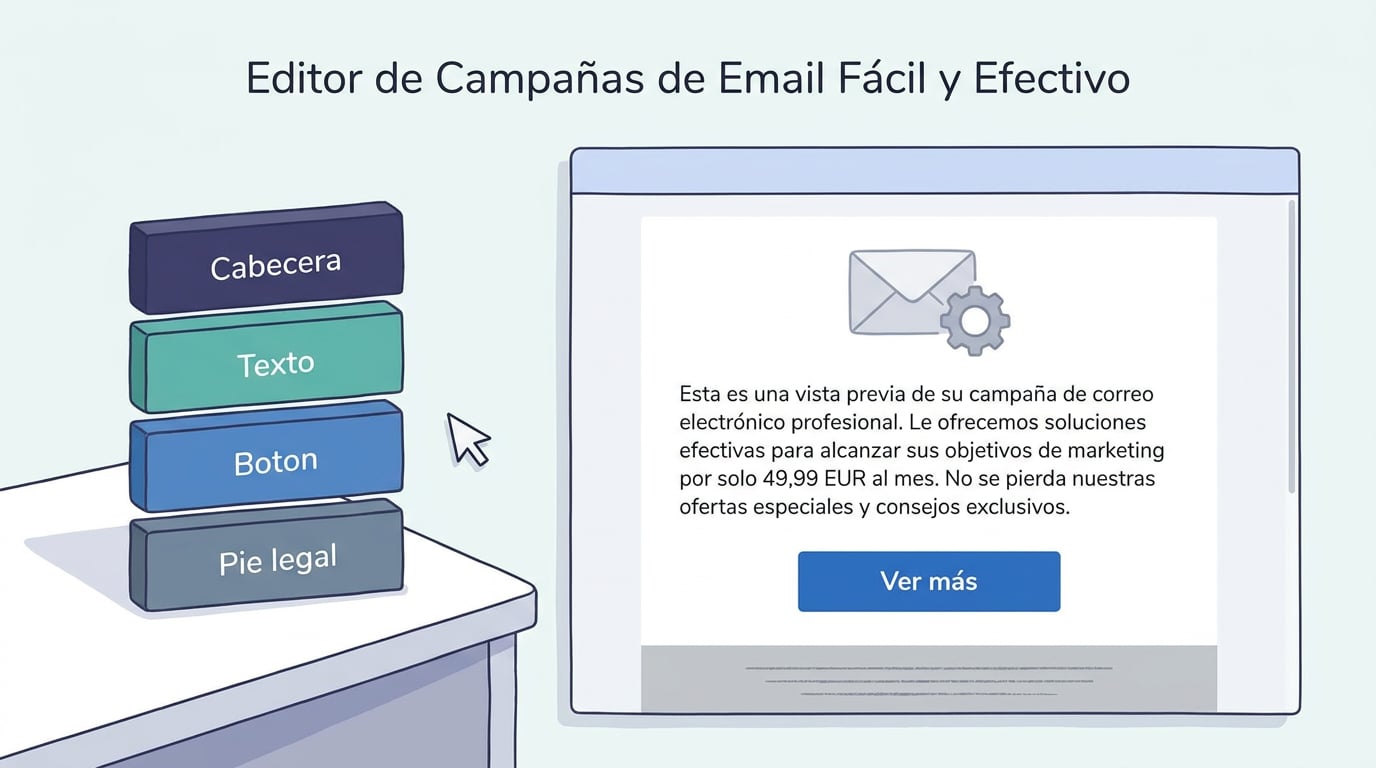
A campaign is built using blocks: header with logo, text, button, image, columns, divider and legal footer. These are converted into an email with tables and styles that Outlook and Gmail understand, using your platform's colours and logo. There are in-house templates (newsletter, promotion, announcement) and you can save your own. Variables such as the name or company are filled in per recipient. The footer with the registered company name and one-click unsubscribe is always added, whether you include it or not.
If you are torn between two subject lines, activate the A/B test: a percentage of the list receives half subject A and half subject B; after the hours you set, the rest is sent with the one that achieved the most opens.
5. Test, simulate, send
"Test" sends the email to you with sample data. "Simulate" tells you, without sending anything, who would receive it, who is left out and why, whether the transport and domain are ready, and how much monthly quota you have left. "Send now" shows you that same summary and asks for confirmation; "Schedule" sets it for a specific date.
The mailing is sent in batches, respecting the hourly limit. You can pause, resume or cancel. And then the numbers arrive: recipients, sent, delivered, opens (if you activate the pixel), clicks, bounces, complaints and unsubscribes, along with the recipient list and their status, and export to NAiOS Office.
What happens next with unsubscribes and bounces
Anyone who clicks "unsubscribe" is added to the workspace's suppression list and marked as "do not contact" in the CRM; the same goes for anyone whose email bounces or who marks it as spam. This list is shared by sequences and campaigns, flags the address across all your lists, and cannot be cleared from the interface. It is the boring part that saves you from the expensive part.
Campañas is available on all plans. If you have your list, your logo and ten minutes, your first newsletter can go out today.