
Someone sends you a drawing in DWG and you don't have AutoCAD. You open it on your mobile and you can't see anything. You ask them to send it as a PDF and it arrives without the layers you're interested in. From today, there's a module in NAiOS for that: NAiOS CAD opens AutoCAD drawings, displays them with their layers, lets you measure and search for a label, exports the view to PDF and, like everything in NAiOS, lets the chat answer questions about the drawing. It's a viewer, not an editor: you can't draw or save DWG.
In 30 seconds
- Opens DWG and DXF from AutoCAD, BricsCAD, LibreCAD or DraftSight, from version R14 to 2018.
- Layers as in AutoCAD: show or hide each one with its colour; those that were off or frozen arrive that way.
- Measure distances and areas with snaps to the vertices, in the drawing's units and in metres.
- Search for «electrical panel» or «bathroom» and the viewer takes you to the label.
- Export the view to PNG or vector PDF, and download the original whenever you want.
- Ask the chat: «what rooms does the drawing have?», «where does it say electrical panel?», «how big is it?».
- DWGs are converted in your browser: the file doesn't leave for any external service.
One project, one folder of drawings
In NAiOS CAD a project is a building site, a commission or a plot, and its drawings go inside. You upload one or more files and, within seconds, each one has its summary card: which version it was saved in, what units it's drawn in, how much space it takes up in metres, what layers it has and how many elements are in each one, which blocks are repeated, how many texts and dimensions it contains, what paper layouts it includes. And the warnings you should know before trusting the drawing: external references that weren't included in the file, AutoCAD fonts that don't exist on the web, three-dimensional elements that are projected in plan view.
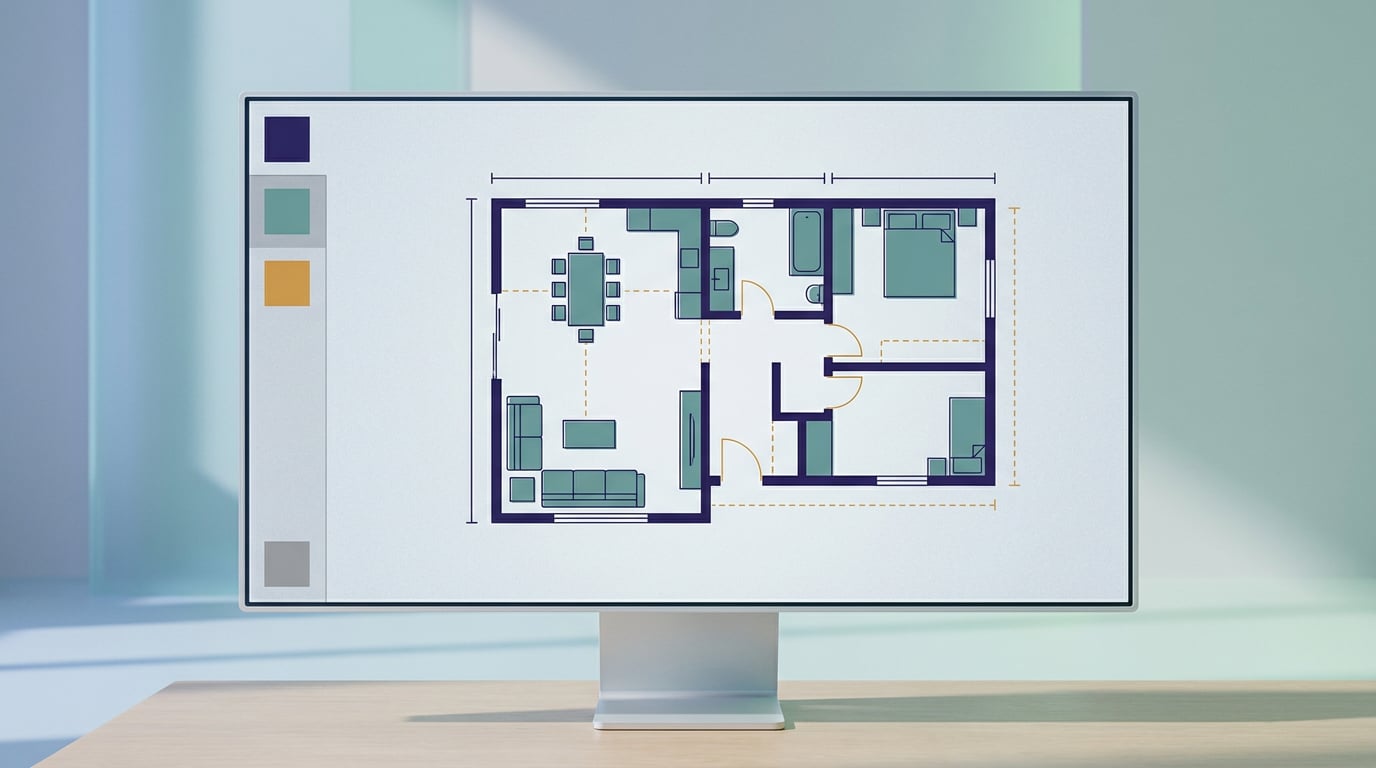
The viewer is the usual one in CAD: you drag to move around, the wheel zooms in and out, one button fits the entire drawing and another changes the background from white to black, because many drawings are designed to be viewed on black. If the file has several paper layouts, a drop-down menu switches between them.
Measure and search
With the ruler active, you tap the points and the cursor snaps to the vertices of the drawing, so the measurement is from the plan and not from your hand. It appears in the file's units and, if the plan declares them, also in metres. With the polygon you measure areas: square metres, or hectares if the plot is large, and the perimeter as a bonus.

The search reads the texts in the plan: room labels, dimensions, block attributes, area tables. You type a word and the matches appear with their layer; when you tap one, the viewer centres on it and marks it. Those same texts are what the chat knows about the plan.
DWG, converted in your browser
The DWG format is closed, and there is no DWG reader in the software world with an open licence that runs on a server without issues. There are two ways out: send the drawing to a third party's cloud to convert it, or convert it on the computer of whoever is viewing it. We've chosen the second.

When you upload a DWG, your browser converts it to DXF with LibreDWG, a free software programme from the Free Software Foundation compiled to run inside the browser, and sends NAiOS the DXF together with the original DWG. The server never touches the converter. The first time, the browser downloads the converter, about 11 MB, and saves it in cache; from then on each drawing takes one or two seconds. The original DWG is kept and the converted DXF can be downloaded to open it in other programmes.
If you attach a DWG directly in the chat, it is saved as a pending drawing in your «From the chat» project; you open the link, press «Convert now» and you're done.
Ask the chat
As with GIS maps or Knowledge Base documents, the NAiOS chat sees your drawings. Attach a DXF in a conversation and the assistant receives the complete summary card; from there you can ask:
- «What rooms does the drawing have?» It reads the labels and lists them for you.
- «What layers are there and which has the most elements?» Name, colour, state and count of each one.
- «Where does it say electrical panel?» It gives you the layer and the coordinates, and a link that opens the viewer centred on that text.
- «How big is the floor plan?» The rectangle that contains everything drawn, in metres.

NAiOS agents have the same tools, all read-only: no agent can change or delete a drawing. If the drawing is a DWG not yet converted, the assistant tells you so instead of making up the content.
Sharing with your team
Each project is shared with the people you choose, from your company or by email, with permission to view (look, measure, export) or to edit (also add and delete drawings). If they already use NAiOS they get in straight away; if not, they receive an email with the acceptance link. Whoever creates the project remains the only one who renames it, deletes it and shares it.
Who it's for
- Architecture and engineering practices that receive drawings from collaborators and clients and don't want an AutoCAD licence for every person who only needs to look.
- Installers and refurbishments: open the drawing on site from your mobile, measure an opening, find where the panel goes.
- Estate agents and property managers: the floor plan of each property, shared with whoever needs it, without asking for PDFs.
- Town councils and offices: the drawing of the file alongside the file, and questions about it without opening anything else.
You may know it from: AutoCAD, DWG TrueView, Autodesk Viewer, BricsCAD, LibreCAD. If you already use GIS in NAiOS: CAD follows the same idea of project and sharing; the plots on the GIS map and the building drawings in CAD.
What it doesn't do yet
We'd rather tell you than have you discover it. AutoCAD SHX fonts don't exist in browsers: text is drawn with a substitute font and the summary card warns you. External references (xrefs) don't travel inside the file: if the drawing needs them, ask for them to be bound before exporting it. 3D elements are seen in plan view. And tables from a DWG converted with LibreDWG arrive without position; in that case the summary card also says so. Hatches, splines, dimensions, nested blocks and paper layouts are drawn.
How it was made
NAiOS CAD was born as a one-line idea: "a viewer for AutoCAD files". The analysis was written in one day and the build in another, in two phases: first the DXF viewer with its own reader, no dependencies, and then the DWG conversion in the browser, which was the important decision. We could have sent the drawings to a conversion cloud; we chose that they don't leave your computer. Before signing it off, it was tested with test drawings from all versions, measurements were taken, exports were made, and the module's automated suite was run in production before activating it. The module is available from today on all NAiOS platforms, for all plans.