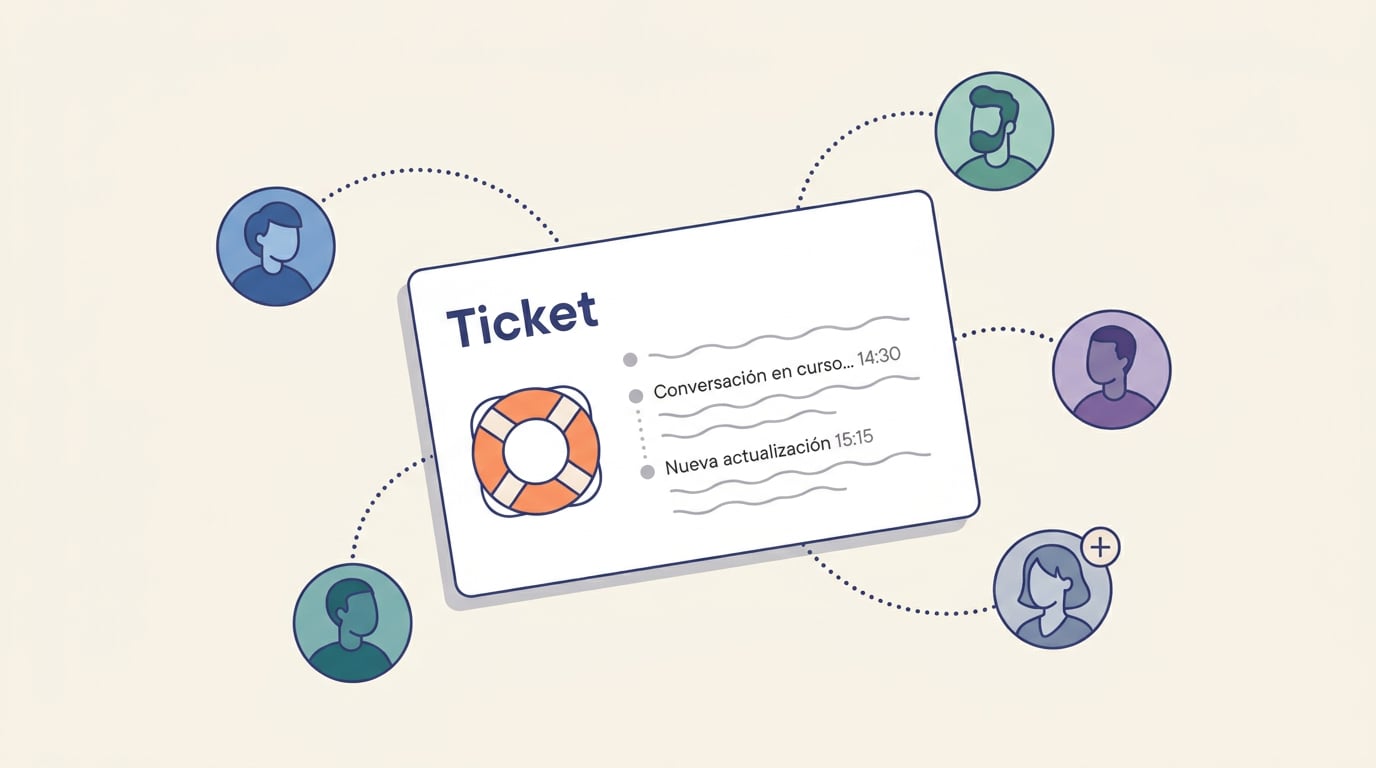
Someone on the team opens a ticket: "the invoice export is giving an error". The support team replies with a question: "from which computer and with which user?". The answer lies with someone else, the admin person, who is the one who exports every month. Until now, that meant forwarding the email, waiting, copying the reply and pasting it into the ticket. From today, whoever opened the ticket clicks Add, types their colleague's email, and she replies directly in the thread. That is what participants in Support are.
Support in NAiOS in two lines
Support replaces "write to support@" with tickets featuring status and history. Anyone with a query or an issue opens an incident, improvement or question ticket, with screenshots and files; the team manages it from an inbox with filters, assignment, priorities and internal notes; and each reply arrives by email and in the notification bell. Everything stays in a single thread, with dates.
What was missing was something that happens in any company: problems are rarely down to just one person.
What is a participant?
A participant is another person with an account on the platform who follows the ticket as if it were their own:
- They find it in their Support, under Shared with me, with a badge marking it.
- They read the entire thread and attachments.
- They reply, also with screenshots and files.
- They receive the same notifications, by email and in the bell.
- They can add other people if needed.
What they never see are the support team's internal notes. Those remain for the team only, including their attachments.
Who can add who
We designed it so that the ticket grows with the conversation, without asking anyone for permission:
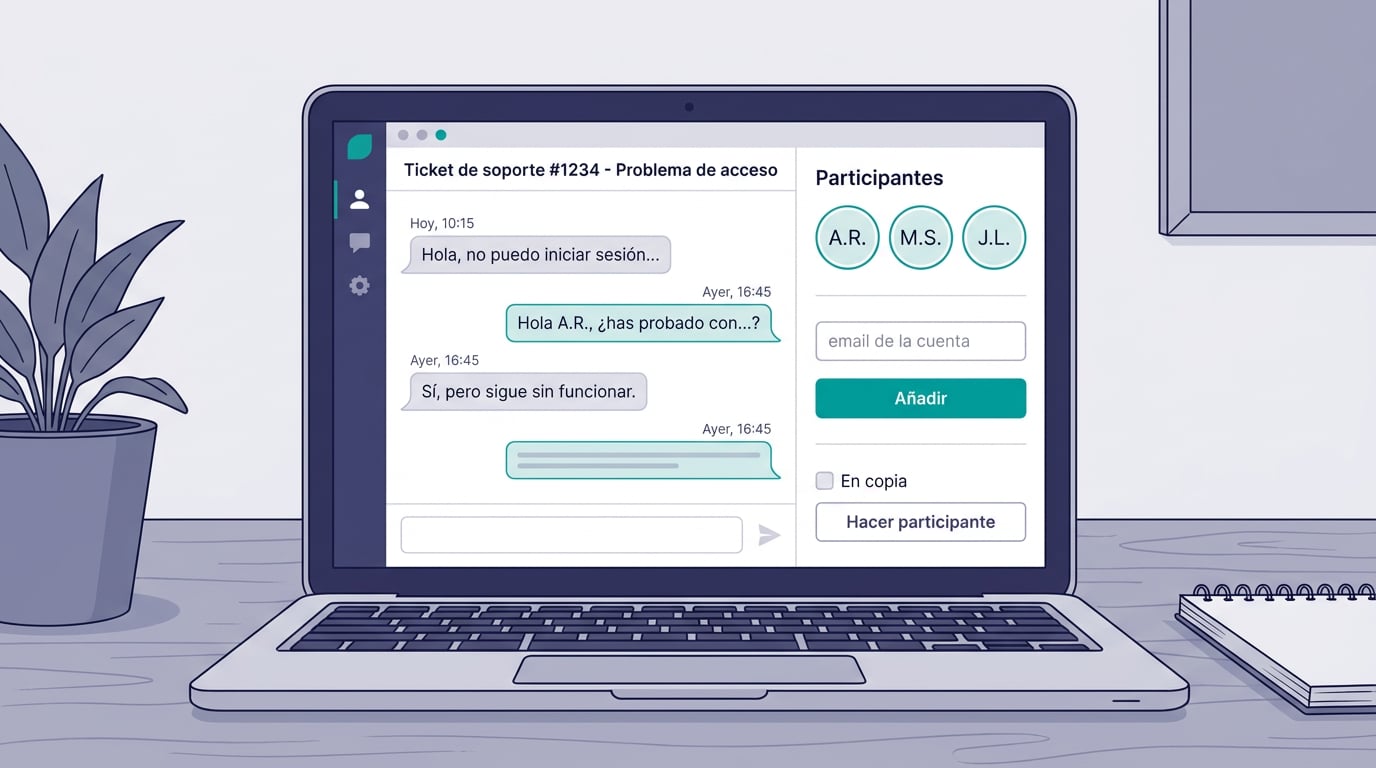
- Whoever opened the ticket adds participants from the ticket itself, using that person's account email.
- Any participant can add others in the same way.
- The support team adds them from the inbox, searching by name or email.
Each addition is recorded in the thread, showing who added whom, and the added person receives a notification with a direct link. To avoid surprises, adding someone requires their exact email: there is no directory to browse who has an account.
Leaving is also simple. Whoever opened the ticket can remove anyone; a participant can remove whoever they added, or leave the ticket when they are no longer interested. Closing the ticket is still up to the person who opened it or the team.
In copy or participant
Support already allowed you to put emails in copy, and they are still useful: they are for people without an account on the platform, who receive the team's replies by email and nothing else. They cannot reply in the thread or see attachments from Support.
When someone in copy does have an account, the ticket detects it and shows the Make participant button. When clicked, a box explains the difference in two lines before confirming: they will stop being an email copy and will start following the ticket from their Support, with replies and notifications. This way, no one converts anyone without knowing what changes.
Notifications that reach the right people
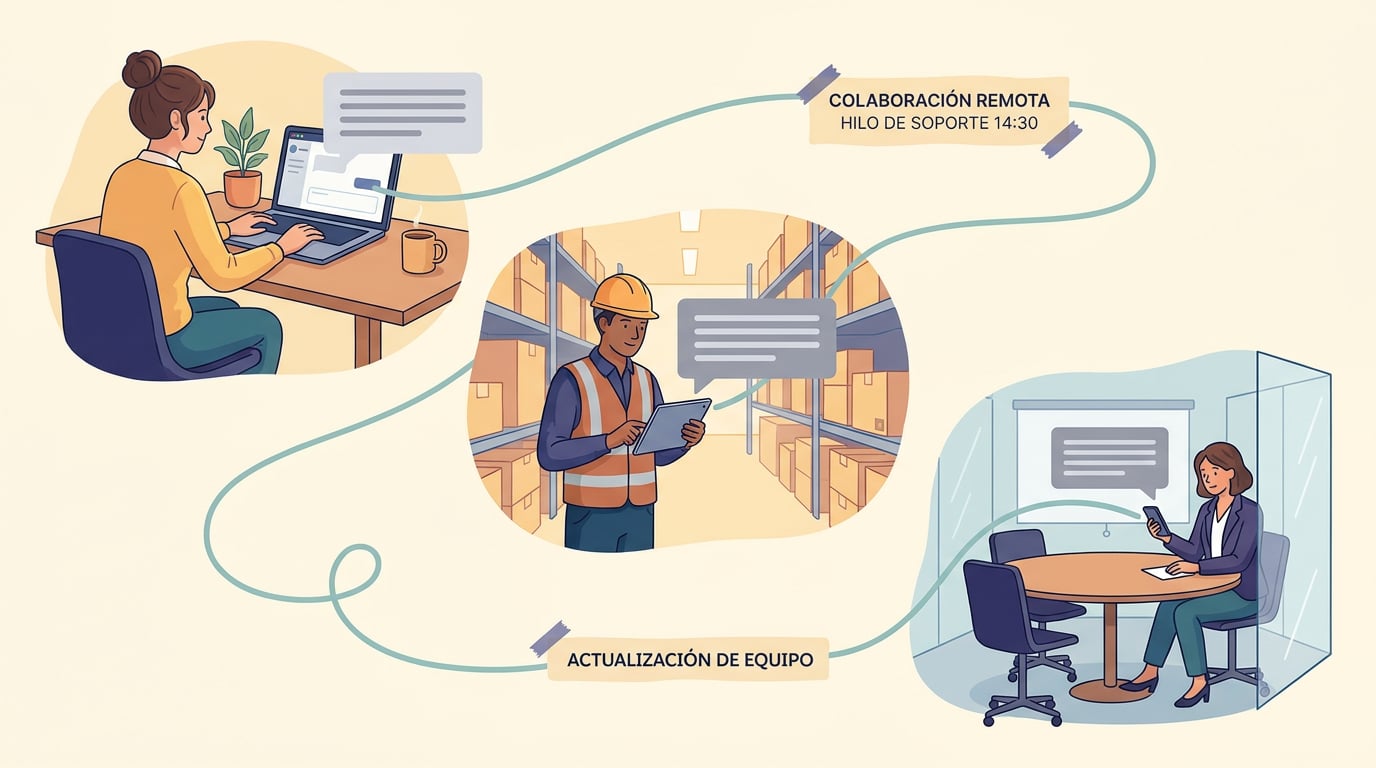
When the team replies, the notification goes to whoever opened the ticket, the copies, and all participants. When whoever opened the ticket or a participant replies, the other people on the ticket are notified, so no one replies blindly. And the ticket follows its usual cycle: a reply from the user's side sends it back to the team, and if it was closed and the problem returns, replying in the thread reopens it with all the context.
Three ways to use it
An issue that depends on someone else. Whoever detects it opens the ticket with the screenshot of the error; the colleague who knows the process joins as a participant and answers the support team's questions in the same thread. No forwarding or second-hand summaries.
A bug affecting several people. Instead of five identical tickets, the first person opens one and adds the others. The team replies once, everyone receives the reply, and each person can contribute their specific case if it is different.
An improvement request with its owner. A salesperson proposes an improvement requested by a customer and adds the person who manages that account. When the team asks about actual usage, the person who knows it replies, and both follow the status until it is closed.
What doesn't change
- A ticket without participants works exactly the same as before.
- The team's internal notes never leave the team.
- Emails in copy still exist for those without an account.
- Closing is still up to the person who opened the ticket or the support team.
Getting started
There is nothing to activate. Open any of your tickets, look for the Participants block and click Add. If you already had someone in copy who has an account on the platform, you will see the Make participant button next to their email. And if you need someone to follow a ticket that is not yours, ask the person who opened it or the support team.