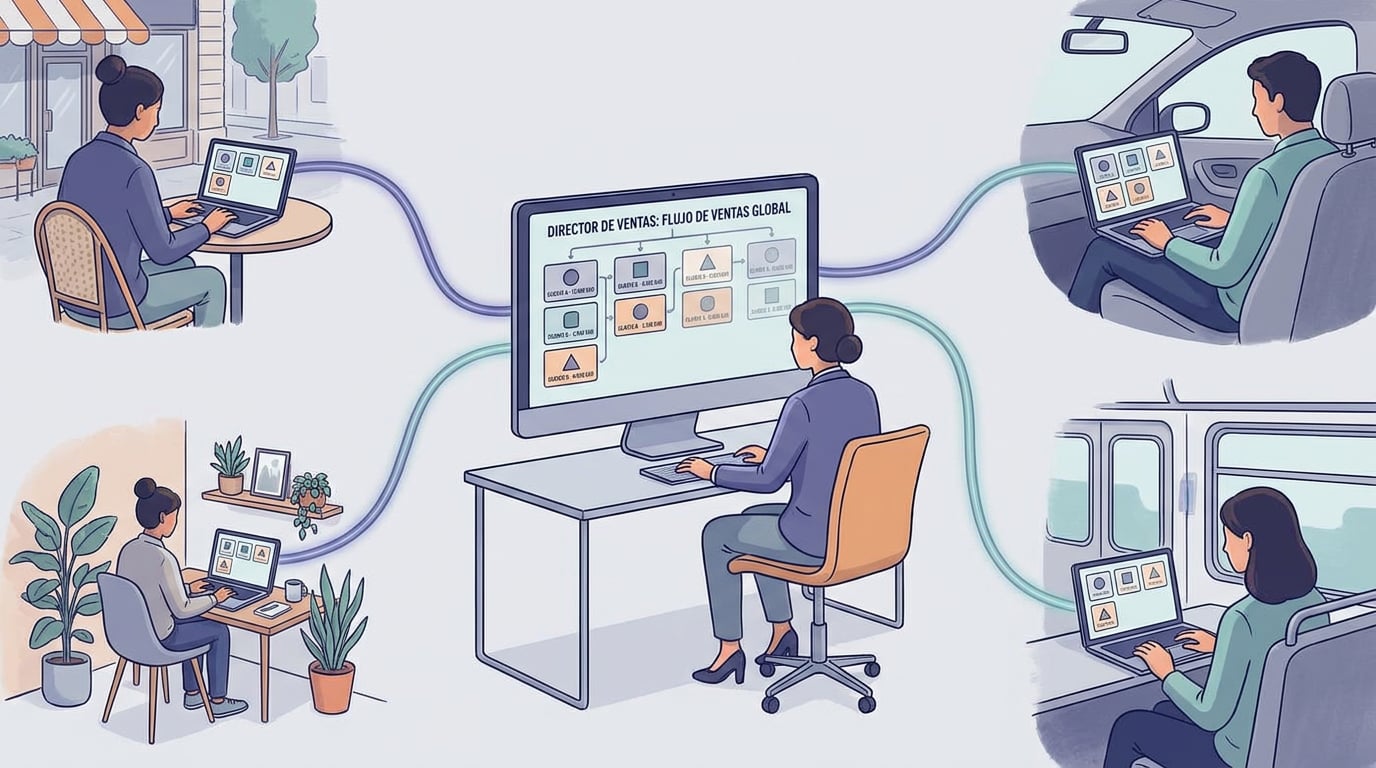
A company with three thousand records in the CRM decides to work with external sales agents, one per area. The question arises on day one: "Is everyone going to see all of our customers?". Until now, the honest answer was yes, or setting up a separate CRM for each one. As of today, there is a third option: invite each sales agent using the Sales collaborator template, distribute the portfolio in bulk, and let everyone work in the same CRM, seeing only their own customers.
The problem with opening up the CRM to outsiders
A sales network grows with agents, distributors or commission-based sales reps. Everyone needs a CRM: to log calls, move opportunities, note down the next step. But almost no company wants an external collaborator to see the entire portfolio, export it to a spreadsheet or import a thousand records by mistake. So you end up with one of two options: the collaborator manages their customers in their own Excel, and the company loses visibility, or they are given access to everything and you cross your fingers.
In NAiOS, a company's CRM was already shared with the team from Companies, with a level per module: view, edit or manage. What was missing was specifying which records. That is what arrives now: scope.
What "only their own" means
With the "only their own" scope, a person sees in the company's CRM:
- The companies they are responsible for.
- The contacts of those companies and the contacts they are responsible for.
- Their opportunities.
- The activities, links and history of all of the above.
And the rule that makes it simple: what has no owner cannot be seen. Whatever the collaborator creates remains in their name, always; they cannot assign someone else as the owner or leave a record orphaned. Transferring records is up to the administrator.
The filter is not just on the customer list. It applies to searches, to the record itself (a record belonging to someone else returns "Not found", without confirming it exists), to the pipeline and forecast, to segments and their counts, to scoring, to the dashboard, to My day, to bulk actions and to the copilotAI CopilotAI Assistant integrated into work tools. If the collaborator asks the chat "what do I have pending this week?", the answer comes only from their records. And if there are duplicates outside their scope when creating a contact, they are warned about how many there are, never which ones.
Templates: invite without configuring module by module
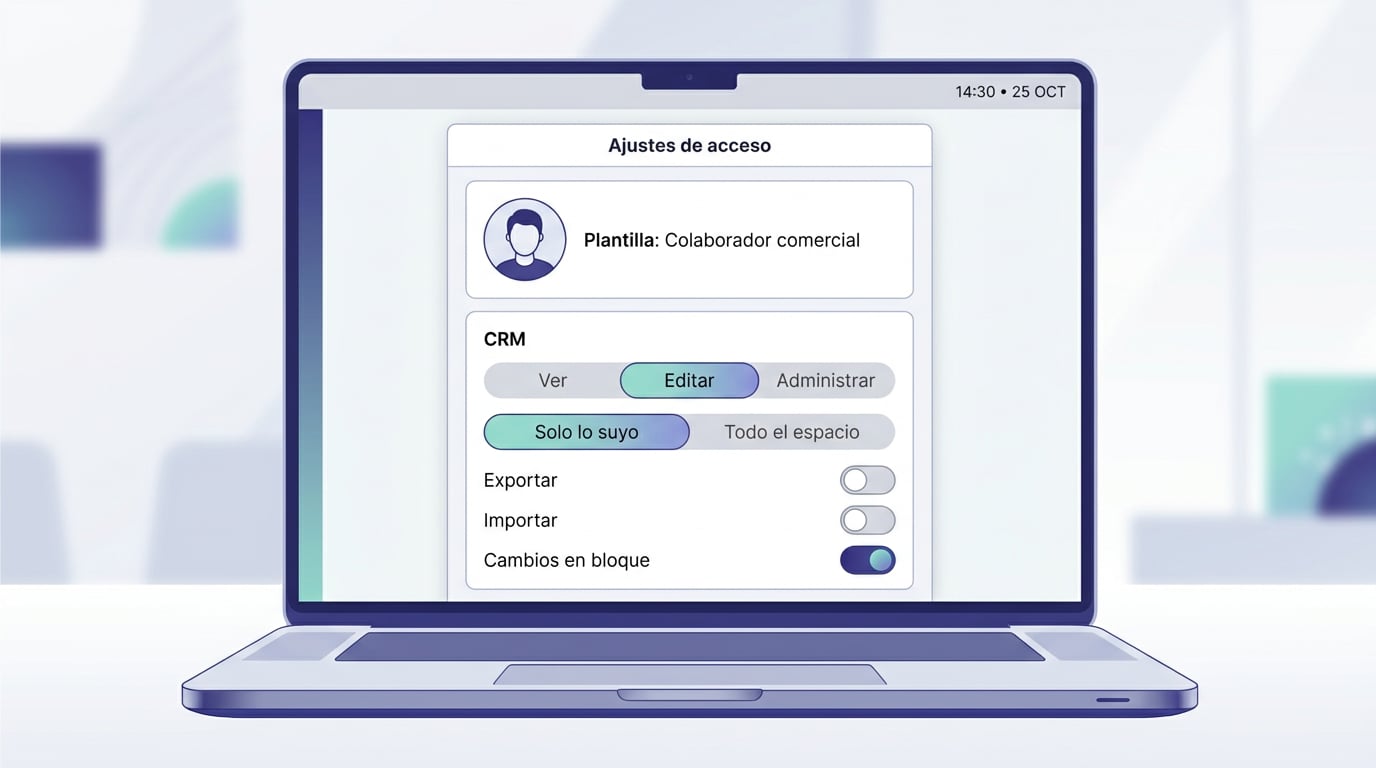
Nobody wants to tick boxes for every single person. That is why company access is granted using templates: Administrator, Management, Read-only and, as of today, Sales collaborator. The latter grants exactly one thing: the CRM, with edit level and "only their own" scope. No exporting, no importing, no change log and no Campañas, which works on segments across the entire space.
Templates are linked: if the template changes, the access of everyone using it changes at the same time, and this is noted in the company log. If someone needs something different, their panel has an advanced view with the module-by-module matrix: level, scope and individual actions like exporting, importing or bulk changes. By tweaking it, that person switches to "Custom" and stops following the template.
A security detail that matters when the company has several administrators: anyone who administers without being the owner can only grant what they themselves have. They cannot appoint administrators, grant a higher level than their own, or grant access to "the entire space" if they can only see their own.
Distribute the portfolio in one go
Since what has no owner cannot be seen, the preliminary step is to distribute them. If you imported your database from Excel, it is normal that most records do not have an owner yet. There are two ways to assign them:
- By selection: in Customers, you tick the records and use the Owner action.
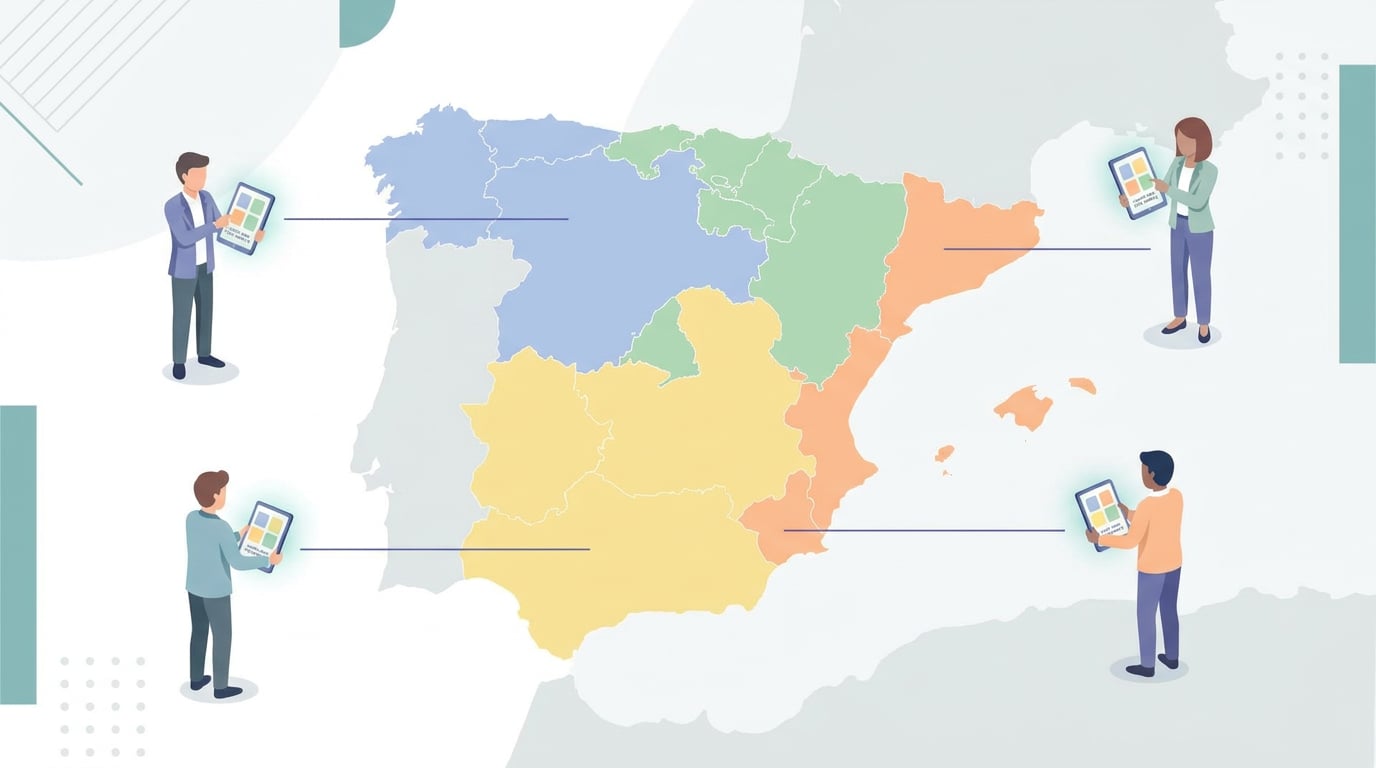
- By segment: the administrator saves a segment, for example "companies in a province", and assigns all its records to one person at once, even if there are hundreds of them.
A company's contacts follow their company: if you assign the company, the collaborator also sees their people. Opportunities, on the other hand, have their own owner, and that one takes precedence. If someone else manages an opportunity within one of the collaborator's companies, they will not see it. That is why their forecast might not match the administrator's, and that is perfectly fine.
"Why can't they see this?"
The most frequently asked question as soon as restricted access is in place is why someone cannot find a record. There are two help tools in each person's panel:
What they will see summarises what that person will find when they log in: in the CRM, how many companies, contacts and opportunities.
Why can't they see something? goes through the steps one by one: whether they accepted the invitation, whether they have the module, whether their plan includes it, whether the space is linked to the company. And if you share a specific record, it explains the reason, for example "the company has no owner", and offers to Make them owner right there.
Everything is kept in the log
The Company Log tab notes who did what with access rights: invitations, acceptances, template or matrix changes, revocations and changes to a template that affected your people. It is kept for 24 months.
And when a collaboration ends, revoking instantly removes the person from the entire company, closes their active connections and, if they managed records, asks you who to transfer them to. The portfolio does not leave with anyone.
And commissions, when there is an ERP
If the company invoices with the NAiOS ERP and has its sales agents registered, it can enable the View their commissions action for each collaborator. "My commissions" then appears in their CRM: their own data, month by month, with the base, percentage, amount and whether it has been settled, without entering the ERP. Settling and recalculating remains the company's responsibility. It is not included in any template: it is enabled manually, person by person.
Three ways to use it
A service company with agents by province. It imports its database of companies, saves a segment by province and assigns each segment to its agent. It invites the agents using the Sales collaborator template. Each one opens the CRM and finds their area, with the "Only your customers" badge; management sees the full pipeline and the log of every movement.
A distributor with commission-based sales reps. In addition to the restricted CRM, it enables "View their commissions" for each sales rep. No more end-of-month emails asking how much is due: everyone checks it in their CRM, and the company settles it from the ERP as usual.
A consultancy that adds a temporary partner. It assigns them three specific accounts and invites them. When the project ends, it revokes access and returns the three accounts to the person who managed them. The log records when they joined, what they saw and when they left.
Phrases you can ask the chat
- "What open opportunities do I have and what is the next step for each one?"
- "Summarise the latest activity with this company for me."
- "Create a new contact in this company with this email." It will be in your name.
- "Note down that I called and that I will call back on Tuesday."
- "How many customers do I have in the proposal stage?"
What does not change
- Anyone who already had access to the entire space still has it. The scope only applies to those you grant it to.
- A collaborator keeps their own personal CRM if their plan includes it; the company's one is separate.
- Tasks and Calendar do not filter by owner: that is why the Sales collaborator template does not include them.
- Nothing happens without a person behind it: actions with an effect still require confirmation.
Getting started takes five minutes
Distribute the portfolio using the Owner action, by selection or by segment. Invite each sales agent from Companies → People using the Sales collaborator template. Once they accept, open their panel and check "What they will see" to make sure they see what they should. If something does not match, "Why can't they see something?" tells you the reason and how to fix it.