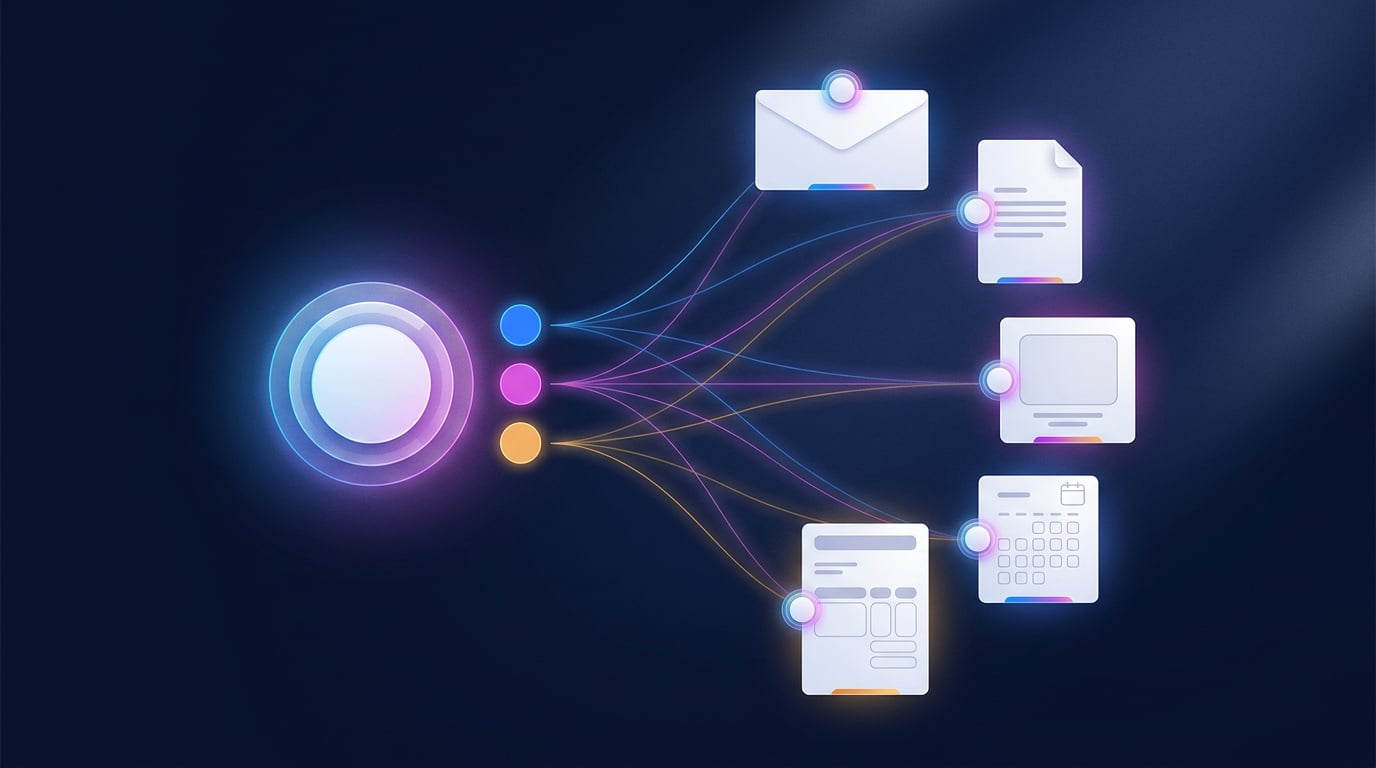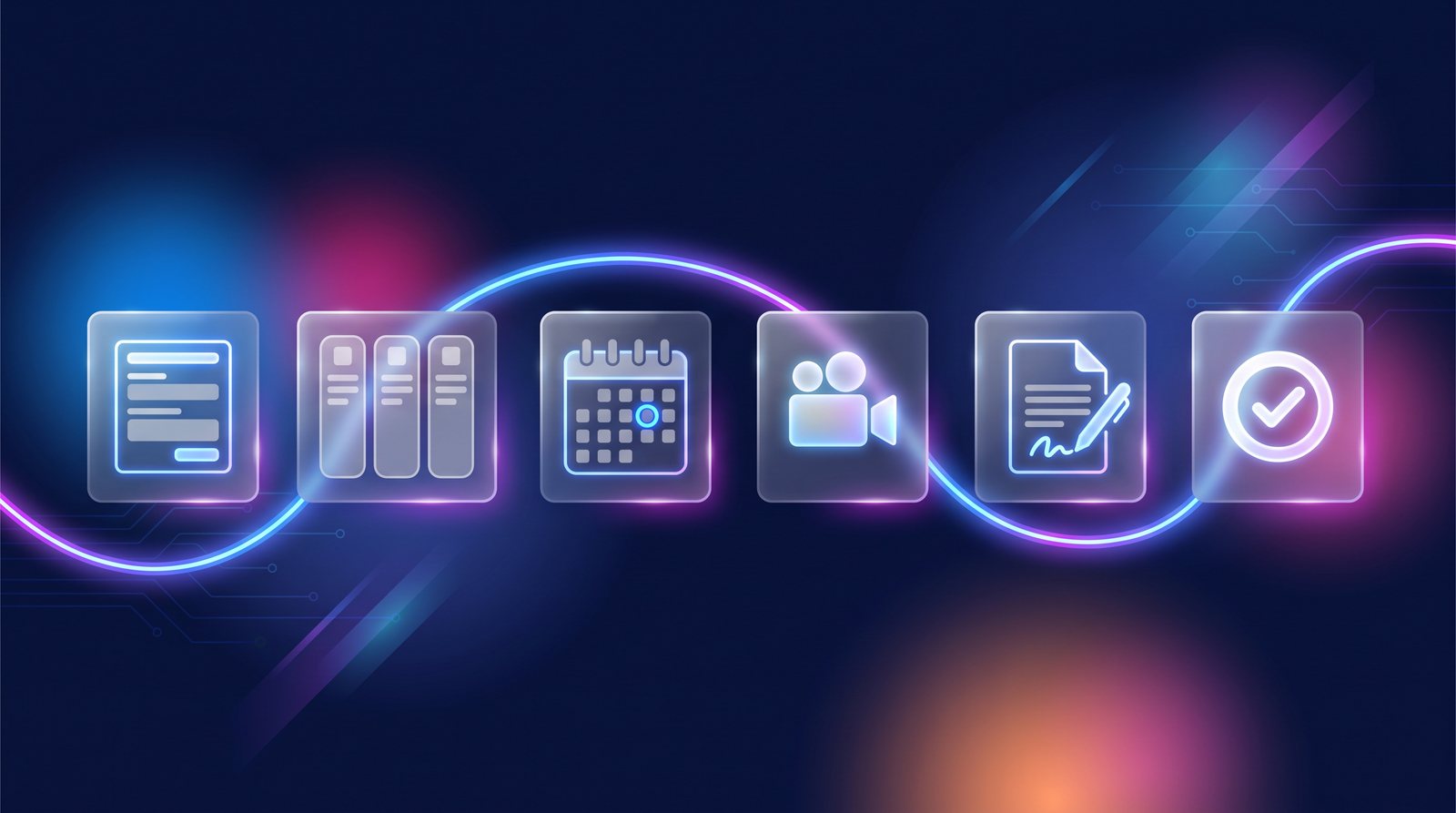
Someone fills in the form on your website on a Thursday afternoon. From there, the usual routine: copy their details into the CRM, write to them to suggest a meeting, juggle calendars, send the video call link, take notes, draw up the contract, chase the signature, issue the invoice, check whether they've paid. Eight programs, eight rounds of manual copying and a few things forgotten along the way. This month we've connected those pieces inside NAiOS so that the whole journey, from first contact to payment, flows from one module to the next without anyone copying anything. And setting it up doesn't mean configuring eight screens: you just ask an assistant.
In 30 seconds
- The form creates the opportunity in your sales pipeline, and an agent can react at that very moment.
- Every stage can do something when a deal enters it: launch an agent or send an email to the contact.
- One calendar: Calendar appointments, Bookly bookings and Meet meetings appear together and block each other out.
- Meetings leave a trail: recorded video call, automatic minutes and a summary on the customer record.
- Contract from a template, plus signature, without leaving the platform.
- Getting paid: payment link, autopay by card or direct debit, and SEPA remittances for your bank.
- Set-up builds it with you: a new recipe, “Sales Flow”, creates the pipeline, the form, the agents and the appointment type through conversation.
The problem: the pieces exist, the connections don't
Hardly any small business has a tools problem. It has a form, a CRM, a calendar, an invoicing program. What it lacks is what sits between them, and that's where business gets lost: the lead nobody called because the alert went to an inbox nobody checks, the meeting nobody took notes on, the contract that was sent and never followed up, the invoice paid three weeks late because nobody checked it.
In NAiOS, all those modules already lived on the same platform. This month's work was getting them to talk to each other: making whatever happens in one of them an event the others can listen for.
1. The lead comes in
When you connect a Forms form to the CRM, you choose what happens with each response. If the email address is new, a contact is created along with an opportunity in the first stage of the pipeline. If you already know them, the response is added to their record as a note, with no duplicates.
There's a second, less obvious use: from a contact's record you can generate a link to the form that already carries their reference. It's handy for asking an existing customer for information, such as a brief or a requirements list, and having their answers land on their record.
2. Stages do things
A pipeline stops being a board someone has to remember to update. Each stage can have two actions on entry, configured by the administrator:
- Launch an agent.
- Send an email to the contact, with their name, company, amount or stage filled in automatically, and using your company identity.
And agents have a new way of being scheduled. As well as “every day at nine”, they can now start when something happens:
- Form submitted.
- New opportunity in the CRM.
- An opportunity changes stage.
- New booking, in Calendar or Bookly.
- Document signed by everyone.
- Meeting minutes ready.
The agent receives the event data and does whatever you've asked: prepare a summary of the lead before the call, draft the proposal from the minutes, notify the team. If you want to understand exactly what an agent is and isn't, it's all in the Wiki: AI agents.

3. The meeting
Calendar is now your single calendar. Bookly appointments and Meet meetings appear in the same calendar and take up slots on your public booking page, just like anything in your Google Calendar. No more customers booking the exact time you already had a video call.
- Every booking with a video call creates a real Meet meeting, with its own link.
- Automatic recording and minutes: for each appointment type, you decide whether the video call is recorded and minutes are taken automatically.
- The minutes reach the CRM: they appear on the contact's record and on their open opportunity, as just another activity.
- Reschedule or cancel: both you and your guest can move the appointment, or cancel it with a reason. The meeting moves with it.
- Next steps with a time: in the CRM, an opportunity's next step now accepts a time as well as a date, and the reminder goes off at that time.
4. The contract and the signature
In Legal you store your contract templates. When the time comes, you ask the chat: it creates the contract from the template with your company's details, the customer's details, the dates and the amount, and flags anything still to be filled in. You review it and send it for signature with Sign.
From the chat you can also check on an envelope's progress or send a reminder to whoever hasn't signed yet. And when everyone has signed, that's another event an agent can listen for: move the opportunity to “Won”, notify the accounts team, prepare the invoice.
5. Getting paid
The last mile is the one that drags on longest, and the ERP now has three ways to shorten it:
- Payment link. The invoice goes out with a “Pay now” button in the email and in the customer portal. When the customer pays, it's marked as paid automatically. And the CRM can move the opportunity to another stage at that moment.
- Autopay. The customer authorises their card or account once, and recurring invoices are charged as soon as they're issued. For a one-off invoice, use “Charge with saved method”.
- SEPA Remittances. If you collect by direct debit, the ERP generates the remittance file for you to upload to your online banking, with each customer's mandate (which can be signed with Sign) and tracking for every remittance: generated, submitted, credited or returned. Treasury reconciles the bank credit against all the invoices in the remittance in one go.
And on the other side of the ledger, the expenses of the people out selling: the sales rep photographs the receipt on their phone, the AI reads the details and the expense claim waits for approval. It isn't an expense until someone approves it.

Setting it up in a conversation
Everything above adds up to six configurations across five modules. So you don't need to know where each one lives, Set-up has a new recipe, Sales Flow, with these steps:
- Create the sales pipeline.
- Lead capture form connected to the pipeline.
- Agents that react to events.
- Appointment type with video call and minutes.
- Contract template in Legal.
- Online payments in the ERP.
The Set-up assistant doesn't just explain them: it creates the first four itself. You tell it how you sell, “first a call, then a demo, then a proposal”, and it suggests the stages. You approve them and it creates the pipeline. Then the form, already connected to the first stage. Then the agents, which start out as drafts so you can review them before activating them. Then the appointment type with its public booking page.
It works piece by piece and asks for your approval before creating each one. The last two steps, the contract template and the payment keys, are yours to do: the assistant takes you to the exact screen. Each step is ticked off automatically once the platform detects that the piece exists.
And by voice
A detail for anyone who spends their days going from visit to visit: the copilots in ten modules, including the CRM, ERP, Legal and Treasury ones, now have a microphone next to the send button. “Note that I've spoken to them and they want the proposal on Monday” gets dictated as you leave the meeting, not typed when you get back to the office.
Example scenarios
A consultancy that sells through meetings
The website form creates the opportunity. An agent prepares a summary of the company and leaves it on the record. The customer books the demo from the link; the video call is recorded and the minutes reach the CRM. When the deal moves to “Proposal”, the stage sends the email with the next step.
A service with a monthly fee
The contract is generated from the template and signed online. In the same process, the customer authorises autopay. From then on, each monthly invoice is issued, sent and paid with no one lifting a finger.
A business that collects by direct debit
Mandates are signed with Sign and stored on each customer's record. At the end of the month, one remittance with all the invoices; the file is uploaded to the bank and, when the credit arrives, Treasury marks them all as paid together.

What it doesn't do yet
We'd rather tell you ourselves:
- The recipe is for companies. It appears when you're working with an active company, and only its administrators can create the flow.
- Online payments require your own Stripe account. The keys are your company's, and you need to register in Stripe the address it sends payment notifications to. The ERP guide explains it step by step.
- Remittances are uploaded to the bank manually. NAiOS generates the file; it doesn't send it to your bank or automatically read returns from your statement. It covers direct debits to individuals and businesses under the standard scheme, not the business-to-business scheme.
- Stage actions are straightforward, with no conditions. “On entry, do this.” For finer logic (“if the amount is over X…”), there's the agent.
- The calendar reads your Google Calendar but doesn't write to it.
- A photo of a receipt doesn't replace the receipt. Expense claims aren't certified digitisation: keep the original.
- Dictation appears if you have the Voice module.
Where to find it
Everything in this article is available from this month. If you already use NAiOS with a company, open Set-up and look for the Sales Flow recipe, or ask its assistant. If not yet, create your account or take a look at the plans.