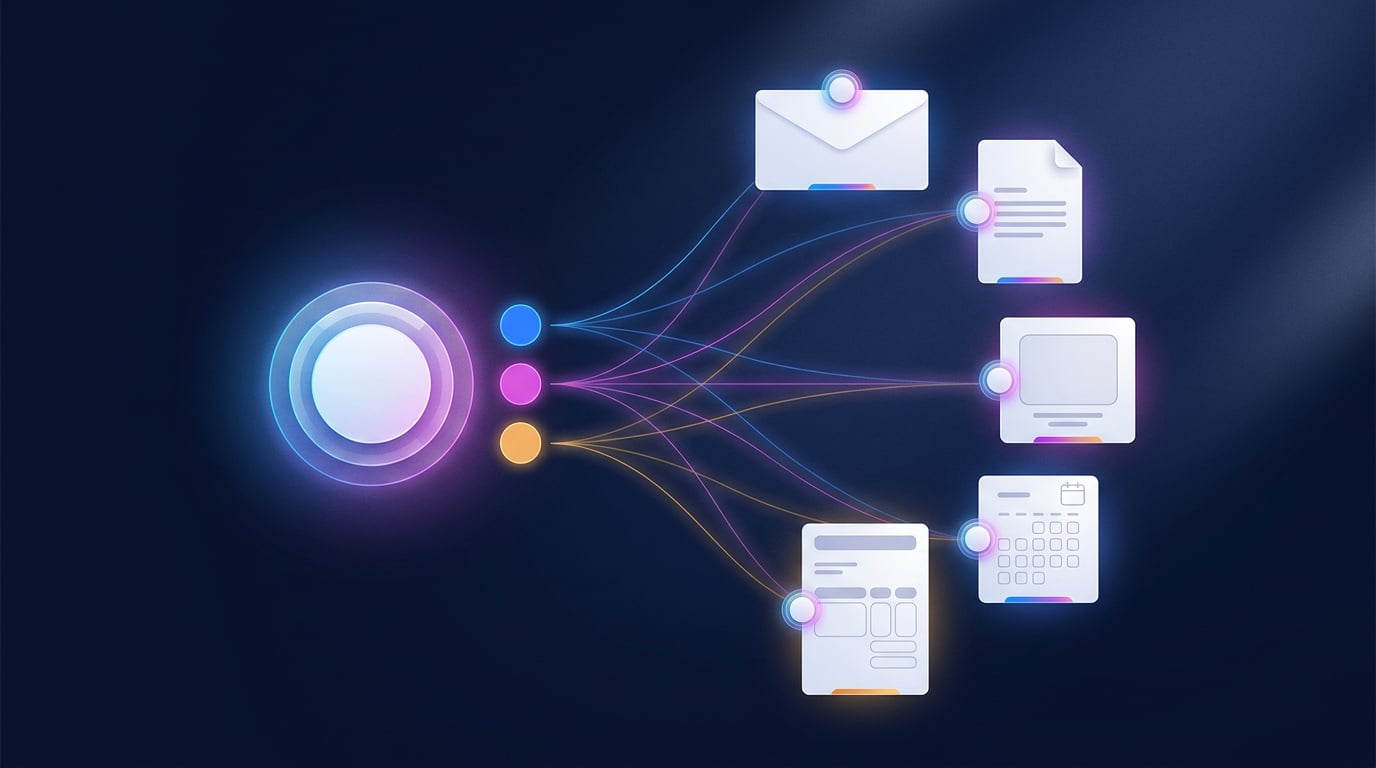
The email claims to come from your software provider. The subject line warns that your subscription payment has been declined and that your account will be suspended today. The sender name is the brand's; the address, if you look closely, is just some free mailbox. It gets past the server filters because, technically, it's a perfectly valid email. And it arrives on a Tuesday at ten, among forty others. That's the email that does real damage in a small business: not the usual spam, but the scam that looks like work. This month NAiOS Mail has learned to treat it with suspicion on your behalf.
In 30 seconds
- A filter for email from strangers: if a sender you don't know looks like advertising or a scam, NAiOS stops notifying you about that email, or bundles them into a daily digest.
- A “Possible spoofing” alert: when the name claims to be a well-known brand, or your own company, and the address isn't theirs.
- “Is it safe?”: a button that runs a thorough check on a specific email, links and attachments included, and gives you a verdict with its reasons.
- Everything from the bell: mark as junk, block, delete or validate a sender without opening the email.
- Nothing is deleted automatically. The filter silences notifications; the email stays in your Inbox.
- It's off by default. Each account decides whether it wants it, and further down we explain how to turn it on.
The problem: the email that gets past every filter
Your mail server's spam filter does a good job with the obvious stuff. What slips through is something else: the cold sales pitch from a freshly bought domain, the “Re:” that isn't replying to anything you sent, the “billing department” writing from a free account, the well-known brand that isn't. These are well-formed emails, sent from legitimate servers, and that's why they get through.
The cost isn't just the risk. Each one of them rings the bell, and a bell that rings for everything ends up being ignored. On the day the important email arrives, it's buried.
Known senders and strangers
The filter starts from a simple idea: people you know always trigger a notification. NAiOS treats a sender as known if you've ever written to them, if they're on your own domain, if they're from the company of someone you've written to, if they're replying to one of your emails, or if you've validated them yourself.
Only everyone else, the strangers, gets put under the microscope. These are some of the things that count against them:
- Their domain fails the checks a server uses to prove that an email really comes from it.
- The domain was registered less than a year ago. Many fraud campaigns switch to a new address every few weeks.
- It's a “Re:” or “Fwd:” that isn't replying to anything.
- The display name shows one address and the email comes from another.
- It claims to be a service or a department and writes from a free mailbox.
- It claims to be a well-known brand, a bank, a public body or your own company, and doesn't write from their domain. This one carries the most weight.
- It pressures you about a payment or an account, or asks you to reply to a different address.
- You've already marked that domain or that name as spam. The filter learns from what you do.
A single signal isn't enough: several need to add up, or one of the serious ones has to be present. When the rules can't decide, an AI gives a second opinion, and to do so it only sees the sender and the subject, never the content of the email.
What happens to a suspicious email
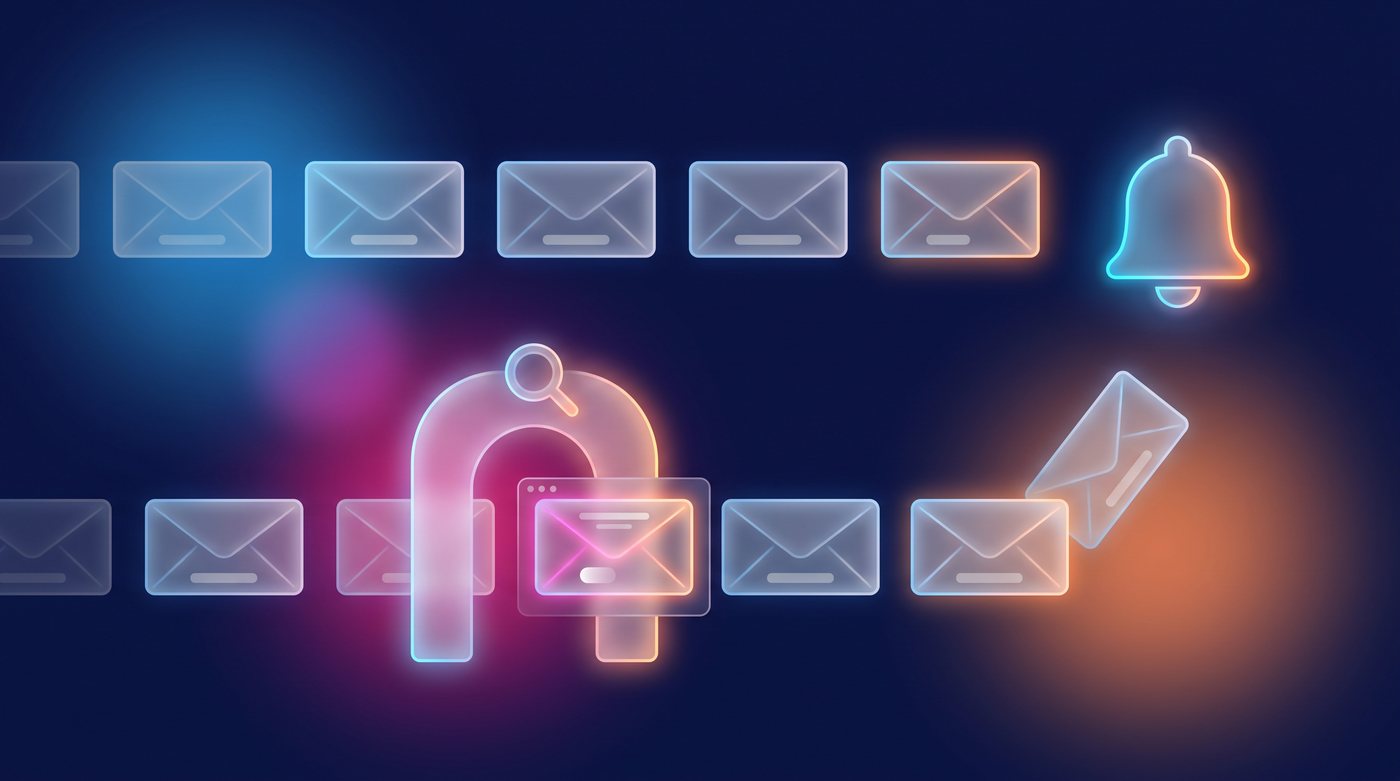
It depends on what you've chosen for that account. There are three modes:
- Strangers: notify. Everything works as before. This is the mode every account starts with.
- Strangers looking like spam: daily digest. The bell doesn't ring for each one; once a day you get a single notification listing the emails that weren't notified, with an “All to Spam” button.
- Strangers looking like spam: do not notify. Silence. You'll find them in your inbox whenever you want.
In all three cases the email stays in your Inbox. The filter doesn't move or delete anything: it only decides whether the email deserves to interrupt you. In the inbox, the “Not notified” button opens the list of silenced emails, each one with its reason and a “Not spam” option in case the filter got it wrong. That sender then becomes known and is never silenced again.
Delivery failure notices, the ones telling you that an email you sent didn't arrive, are never silenced.
“Possible spoofing”: the alert in plain sight
With or without the filter, the email list now flags the ones that call for caution. An amber dot marks a stranger showing signs of unwanted email. A red one marks possible spoofing. When you open the email, a banner explains it in plain words: “The name claims to be a well-known company or organisation, but the address isn't theirs”.
Impersonation of your own company counts too. An email from “Support” or “Administration” using your company's name, sent from outside your domain, is one of the most effective scams against a small team, because nobody suspects a colleague.
“Is it safe?”: a second opinion when you're unsure
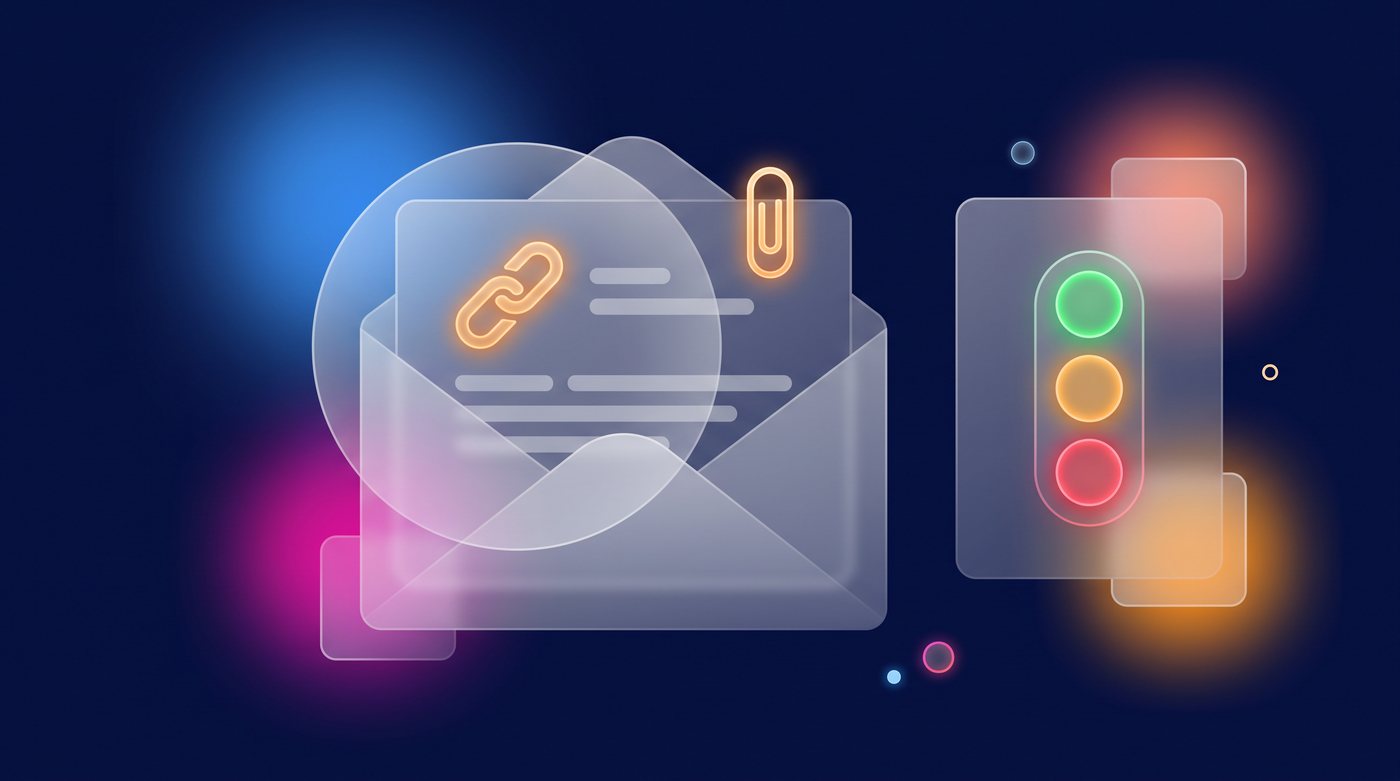
For the email that makes you hesitate, there's a new button in the reader, in the spoofing banner and in the three-dot menu of the list: “Is it safe?” It runs a thorough check on that specific email:
- Links: whether the text shows one domain and the link goes to another, whether they point to a numeric address, whether they use a URL shortener or disguised characters to pass for a different website.
- Attachments: executables, attached web pages, documents with macros, compressed files.
- Sender: the same signals the filter uses, plus the age of their domain.
The result is a card with one of three verdicts, “Nothing suspicious found”, “Reasons to be suspicious” or “Dangerous: looks like a scam”, the reasons in plain language, and buttons to send it to junk or block the sender.
The evidence outranks the AI. The objective checks run first and set a minimum verdict; then the AI explains it and can make it stricter if it spots something else in the text, but never softer. A misleading link is a misleading link, however well written the email is.
Sort it out from the bell
Until now, marking an email as spam from its notification took you to Mail. Not anymore. When you hover over an email notification, its actions appear and run right there:
- “Junk” and “Delete”, with a single tap. Deleted emails go to the Trash.
- “Block sender”, which asks for confirmation within the notification itself.
- “Validate sender”, for the opposite: their emails will always trigger a notification.
In the inbox, every email has a three-dot menu with the same options, and from the reader you can block the domain entirely when the problem isn't one address but a whole company that keeps insisting.
How to turn it on
The filter is off by default, and that's a deliberate decision: silencing a good email is worse than notifying you about a bad one, so we'd rather you switch it on yourself, account by account.
- Open Mail and go to Accounts.
- On the account card, check that Notifications is switched on.
- In the dropdown that appears below, choose the mode. Our advice is to start with daily digest: for a few days you'll see what would have been silenced, you'll fix anything that shouldn't have been with “Not spam”, and once you trust it you can switch to do not notify.
Whoever administers the account can change it. The red and amber alerts and the “Is it safe?” button don't need to be turned on: they're already there.
And as a bonus: emails from your modules, sent from your account
The other half of trustworthy email is making sure yours looks trustworthy too. In Accounts there's a new section, Emails from your modules, where you choose which of your accounts sends the invoices, invitations, appointment confirmations and all the other emails your modules send on your behalf. They go out with your address, from your server, with a copy in your Sent folder, and the customer's reply comes back to that same mailbox. If you don't choose one, they keep going out from the NAiOS address, as before.
What it doesn't do yet
We'd rather tell you ourselves:
- It doesn't replace your mail server's spam filter. It works after it, on what has already reached your Inbox.
- It doesn't move or delete emails on its own. It silences notifications and shows alerts. Moving something to junk is still your call.
- A clean verdict isn't a guarantee. If an email asks you for money, a change of bank account or a password, confirm it through another channel, even if everything looks fine.
- “Is it safe?” sends that email to the AI for analysis, which is why it only happens when you ask for it. The automatic filter, by contrast, only uses the sender and the subject.
- The AI has a daily usage cap. If it runs out, the filter and the check keep working with the automatic checks, just without the second opinion.
- You can't block an entire free email domain, or your own account's domain. That would mean blocking half the world, or your colleagues.
Where to find it
All of this is available now in NAiOS Mail and Notifications, on every plan that includes Mail. If you already use it, go to Accounts and choose the mode for each mailbox. If not yet, create your account or take a look at the plans.