“Can you check the computer for me? It’s running really slow”
Anyone who manages the IT of a company —whether it’s the IT department, an external support company, or simply “the one who understands computers”— knows this scene by heart. The message arrives mid-morning. The computer in question is on another floor, in another store, or in another city. And from there, the ritual begins: calling on the phone, asking the other person to read aloud what they see on the screen, dictating where to click, and praying.
Or the variant that involves traveling: getting in the car for something that can be resolved in four minutes in front of the keyboard.
Remote desktop tools have existed for years, of course. But they are usually just another program: another window, another account, another password, another place to look. And above all, they are silent tools: they show you the screen, but they don’t help you understand what’s wrong with the computer.
NAiOS Remote: your computers, one message away
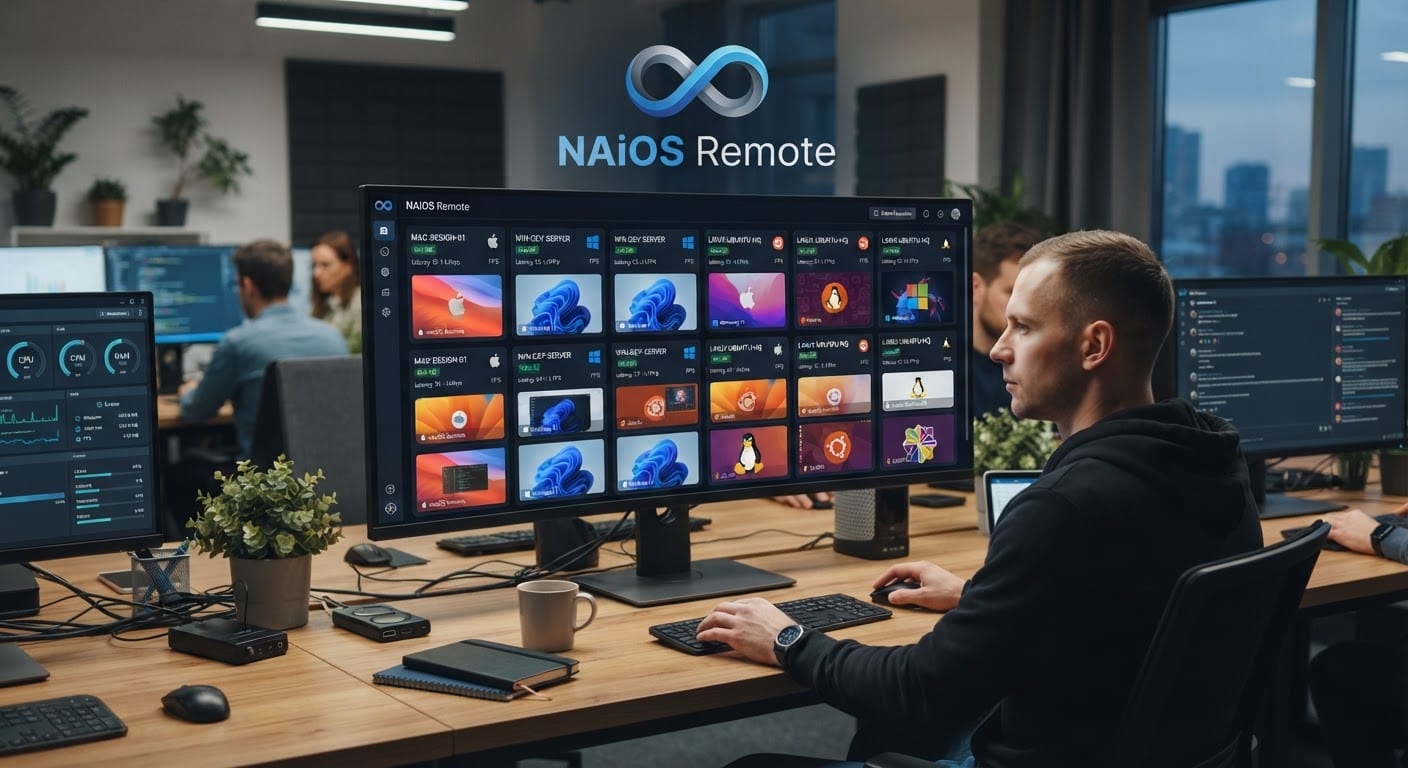
NAiOS Remote is the new module of the platform that puts remote access where you are already working: in the NAiOS chat. From a conversation, you can see the list of your computers, know how they are doing, open their desktop to view and control it, access their files, or execute tasks —without leaving the platform and without installing anything on the computer you are working from.
The fundamental difference is not the window with the remote desktop. It’s that here, remote access coexists with the artificial intelligence of NAiOS. You can ask the assistant “How is the reception computer?” and it responds with a diagnosis in clear language: whether it’s on, how long it has been without restarting, how it’s doing with disk and memory, and if there’s anything that deserves a look.
Many times the answer arrives before it's necessary to connect to anything.What you can do
View and control the desktop of a computer as if you were sitting in front of it, from the browser.
Access the files of the remote computer to consult, upload, or retrieve whatever is needed.
Open a terminal on the computer when the task requires it.
Ask about the fleet's status in the chat: which computers are there, which are connected, which is causing trouble.
Request a diagnosis from the assistant before intervening: the AI reviews the computer's data and tells you what it sees.
Execute specific tasks with the help of the assistant — always with your explicit confirmation before touching anything.
Registering a computer: a link, and that's it
This is where this type of tool usually stumbles: installations with ten screens, licenses per workstation, identifiers that need to be copied by hand. In NAiOS Remote, registration is a link.
You generate an invitation from the platform and send it to the computer you want to connect. On Windows, a guided installer with next-next. On Linux and macOS, a single line that is copied and pasted. As soon as it finishes, the computer appears on your list — linked to your account and only yours.
No need to open ports, configure the network, or fight with the router: the computer connects itself securely, even if it's behind the home connection of a store or a small office.
Workstations and servers are not the same
A nuance that was particularly important to us: it's not the same to connect to a server as it is to the computer where a person is currently working.
That's why the module distinguishes the two cases from the very beginning. When you register a computer, you choose what it is: a workstation, where each connection requires the person in front to accept it, or a server, which you can enter directly because there is no one on the other side. The policy is not a hidden setting that someone can change later: it is decided when connecting the computer and defines how it behaves.
The result is that you can support your human team without becoming the Big Brother of the office, while also managing your servers without friction.
Security designed to delegate
Each user sees only their computers. The computers you connect are yours; no one else on the platform can see or touch them.
Delicate actions require confirmation. When the assistant proposes to execute something on a computer, it shows it to you first and does not proceed without your approval. AI proposes; the person decides.
Everything leaves a trace. Connections and actions are recorded, so you can always answer the question "who did what, and when?".
Windows, macOS, and Linux — also the Raspberry Pi in the corner
NAiOS Remote works with the three major systems: Windows, macOS (both Intel and Apple Silicon), and Linux in its usual variants — including ARM boards like Raspberry Pi that many companies have hidden away serving as a server for something.
And since everything is managed from the browser and the NAiOS chat, it doesn't matter where you work: the office team looks the same from your home laptop as from your tablet.
What they are using it for (and what you would use it for)
Internal IT support. The IT person of a small business with equipment spread across several locations: addresses the issue in real-time, without traveling and without hijacking anyone's phone.
IT service companies. If you provide support to clients, each technician manages their portfolio of equipment from the same platform where they already have their AI agentsAI AgentsSystems that execute multi-step tasks without constant supervision, knowledge base, and conversations. The assistant's preliminary diagnosis saves half of the connections.
Servers, stores, and points of sale. The POS computer, the advertising screen, the small server that does everything: equipment with no one in front of it, in places where no one knows "how to look at something." They are managed directly, and the assistant notifies you of their status without you having to check each one individually.
Remote work. Your own office computer, accessible from home with all your applications and files, without setting up a VPN or leaving anything exposed to the internet.
The domestic front. And yes: your parents' computer can also be on your list. The next time "the internet is down," you can check it from the couch.
The missing piece
NAiOS already connected artificial intelligence with email, documents, calendars, bookings, or social media of a company. With NAiOS Remote, the platform also reaches the machines: the equipment and servers where that business operates every day.
It is not a remote desktop viewer with a chat beside it. It's your ever-present assistant, who now also knows what equipment you have, how they're doing, and how to lend you a hand with them — with the same rule as in the rest of the platform: the AI prepares the work and the person has the final say.
How to get started
NAiOS Remote is activated like any other module of the platform and is launched in a matter of minutes: you connect your first device with the registration link and see it appear in the chat. From there, asking your assistant "show me my devices" becomes just another gesture in your daily routine.
If you want to see it working with your own devices —those of your company or your clients—, contact us and we'll get it up and running with you.